Files keeps all your farm's paperwork in one place, one click away: every lease, invoice and ticket you send in, with the date it came in and the record it's saved with. Watch the video, or follow the steps below at your own pace.
What you'll need
- A file to send in, like a lease, an invoice or a scale ticket.
- A PDF, or a photo from your phone.
- A few minutes.
Files already in? Skip to step 2.
Step 1. Send it in
- In the chat, click the paper clip, and pick your file.
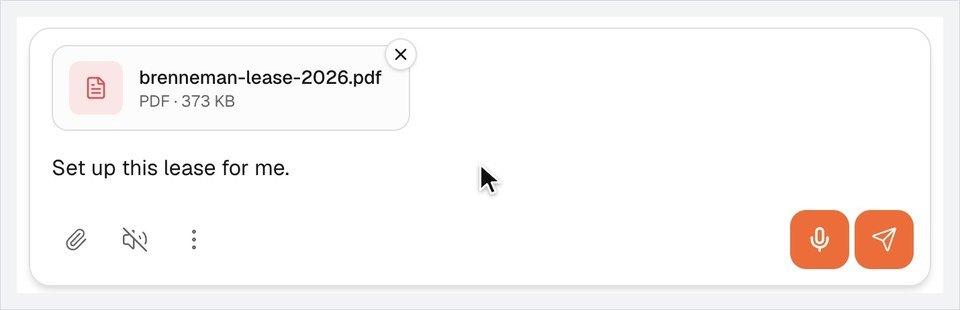
- Say what it is, and send it.
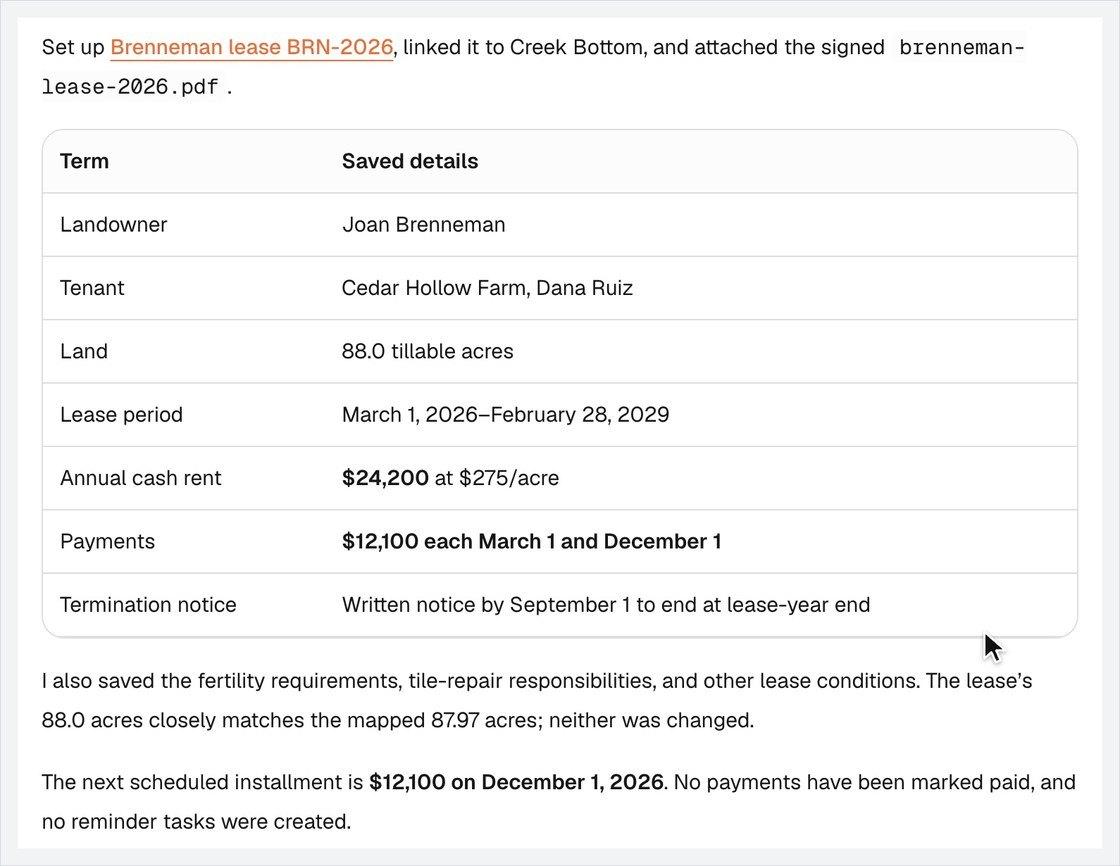
- It's read and saved with the record it belongs to. Here, the lease for Creek Bottom, with the file attached.
Step 2. Open Files
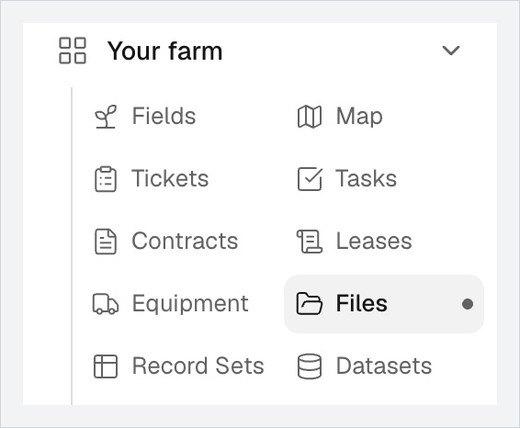
- In the sidebar, under Your farm, click Files.
- Files opens in the Documents panel at the right. Every file is listed, with the date it came in. The tag under a file shows what it's saved with.
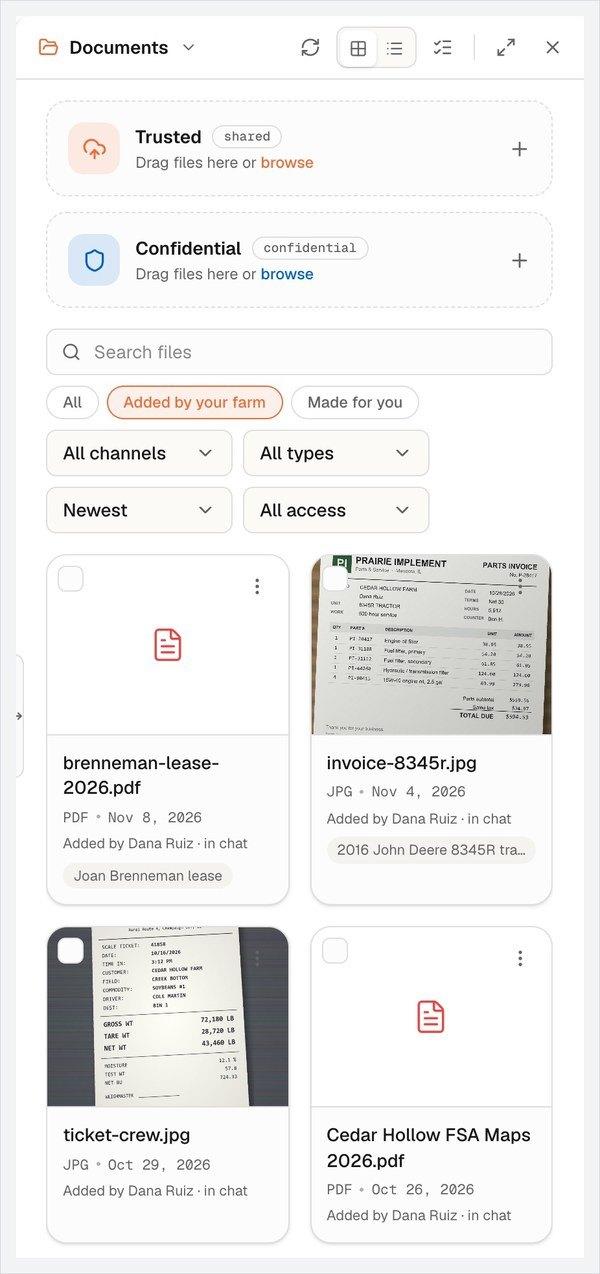
Tip: Looking for one file? Type in Search files, at the top.
Step 3. See where it belongs
- Click a file to open it. It opens in a full window.
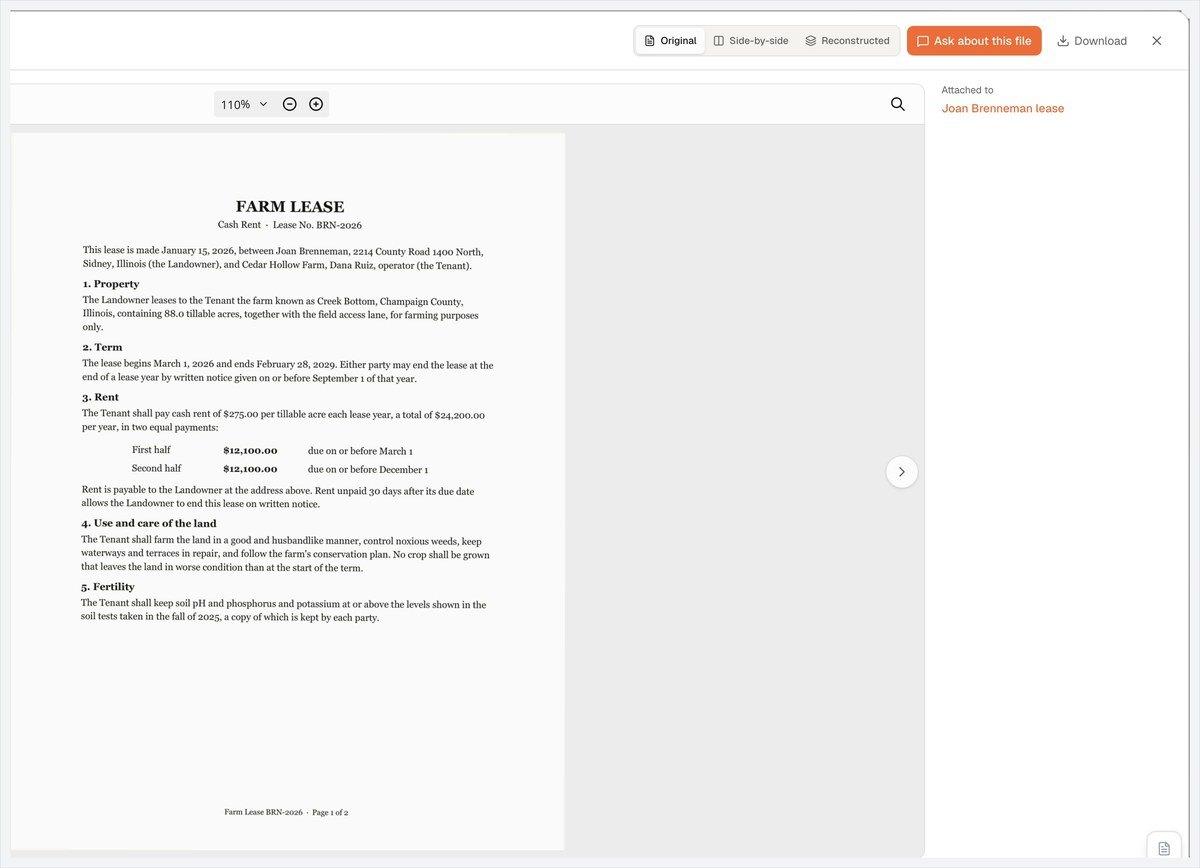
- Attached to shows the lease, the machine or the field it's saved with. Click it to go straight there.
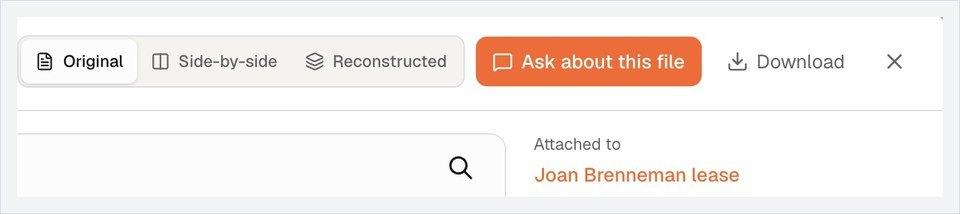
Step 4. Ask about it
- Click Ask about this file. The file is attached in the chat, with a question ready.
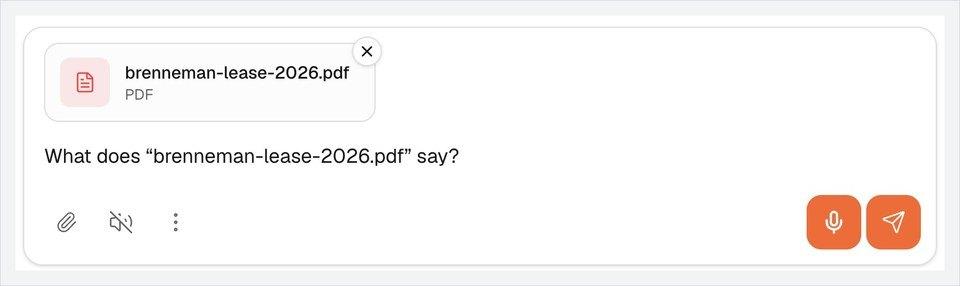
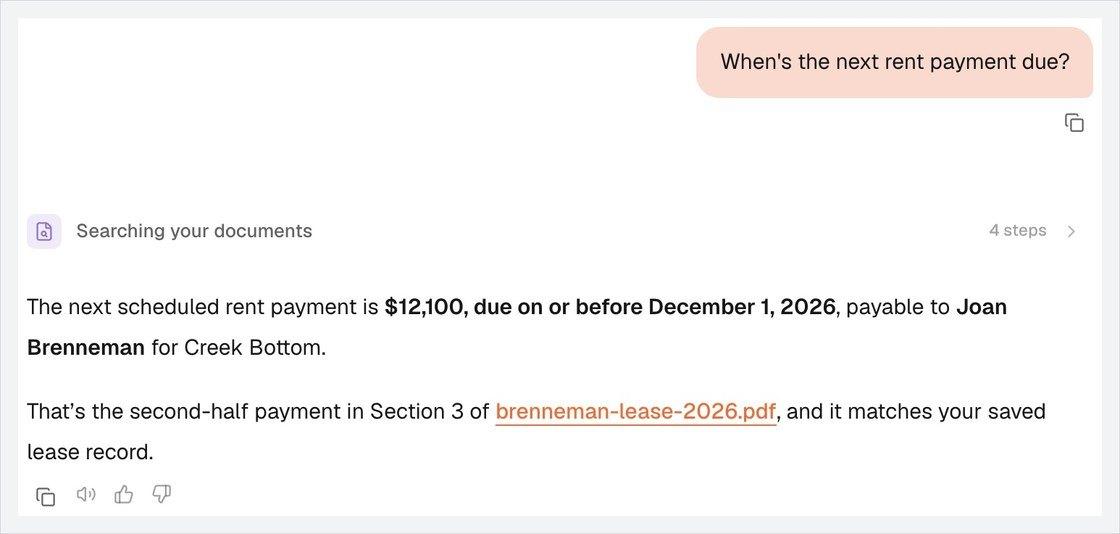
- Send it as it is, or ask your own, like when the next rent payment is due.
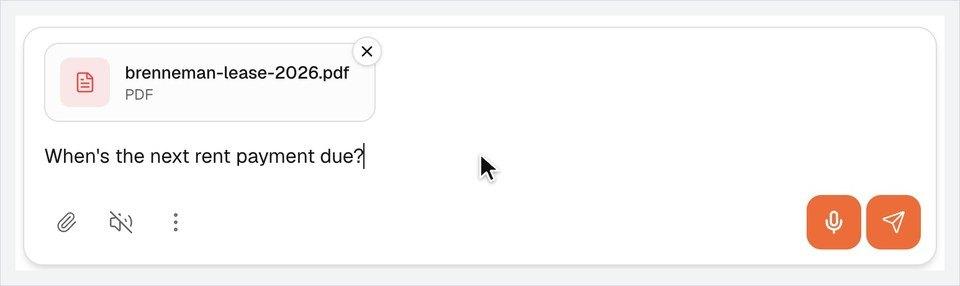
- The answer comes straight from the file, down to the section it's in.
Good to know
- A photo of a ticket or an invoice works as well as a PDF.
- Every file you send in the chat shows up in Files, newest first.