AgAnswers builds your FSA acreage report from your own field and planting records: every FSA field with its farm, tract, acres, crop and share. It can also fill in your FSA maps with each field's crop and planting date. Watch the video, or follow the steps below at your own pace.
Bringing fields and FSA files onto the map is for managers and admins.
What you'll need
- Your field boundaries: a GeoJSON file, or a shapefile saved as one .zip.
- Your FSA farm and tract file from your county FSA office, in the same kinds of file.
- Your FSA maps as a PDF, only if you want them filled in (step 8).
Already set up? If your fields and your FSA file are already in AgAnswers, skip to step 5.
Step 1. Open the Map
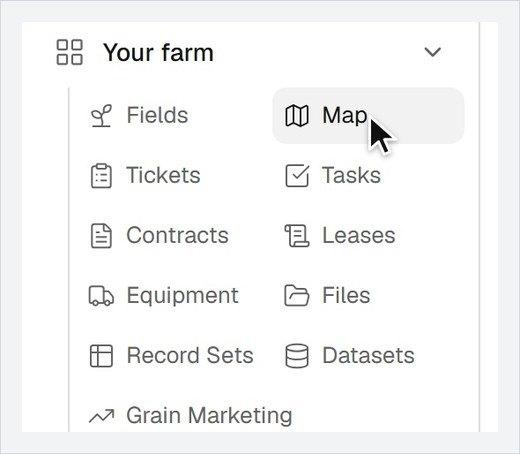
- In the sidebar, under Your farm, click Map. The map opens next to your chat.
Step 2. Bring in your fields
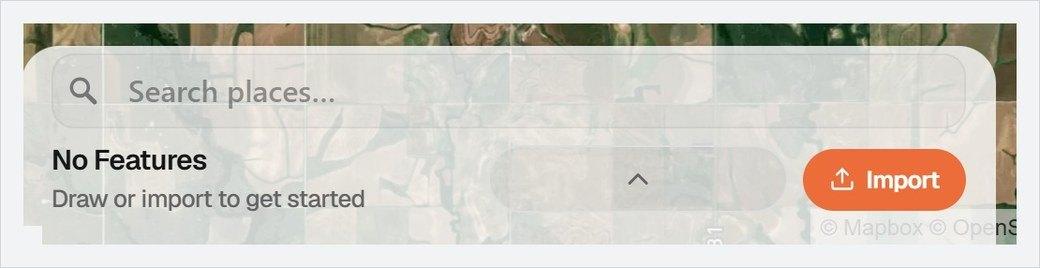
- At the bottom of the map, click Import.
- Choose your field boundary file.
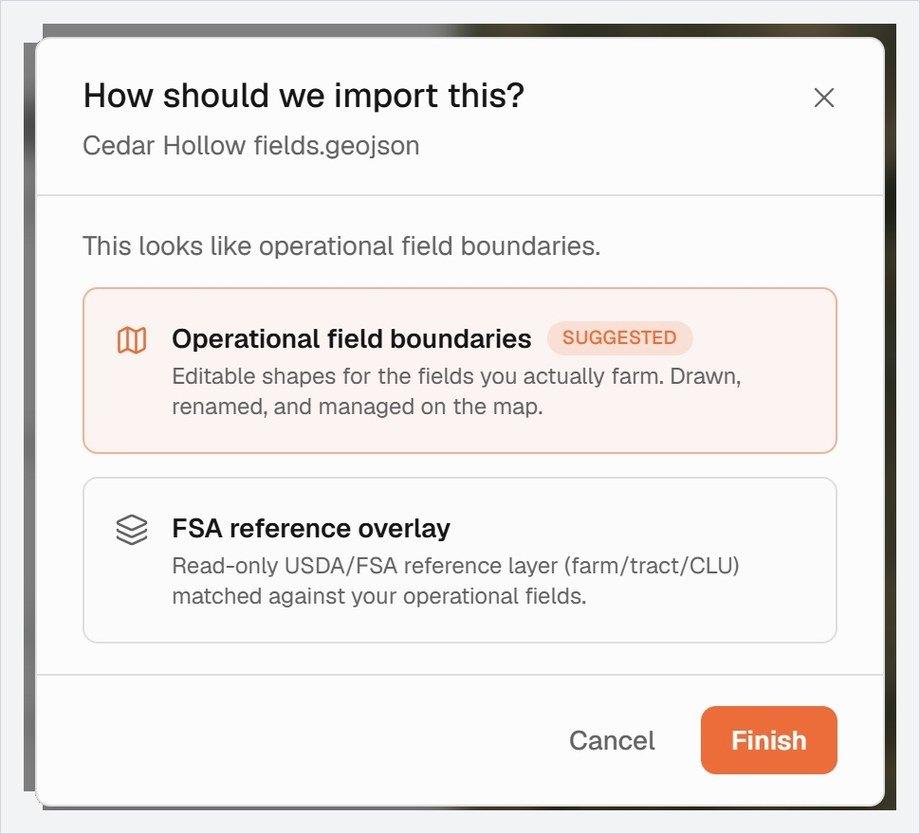
- When it asks How should we import this?, pick Operational field boundaries. It's usually marked Suggested already.
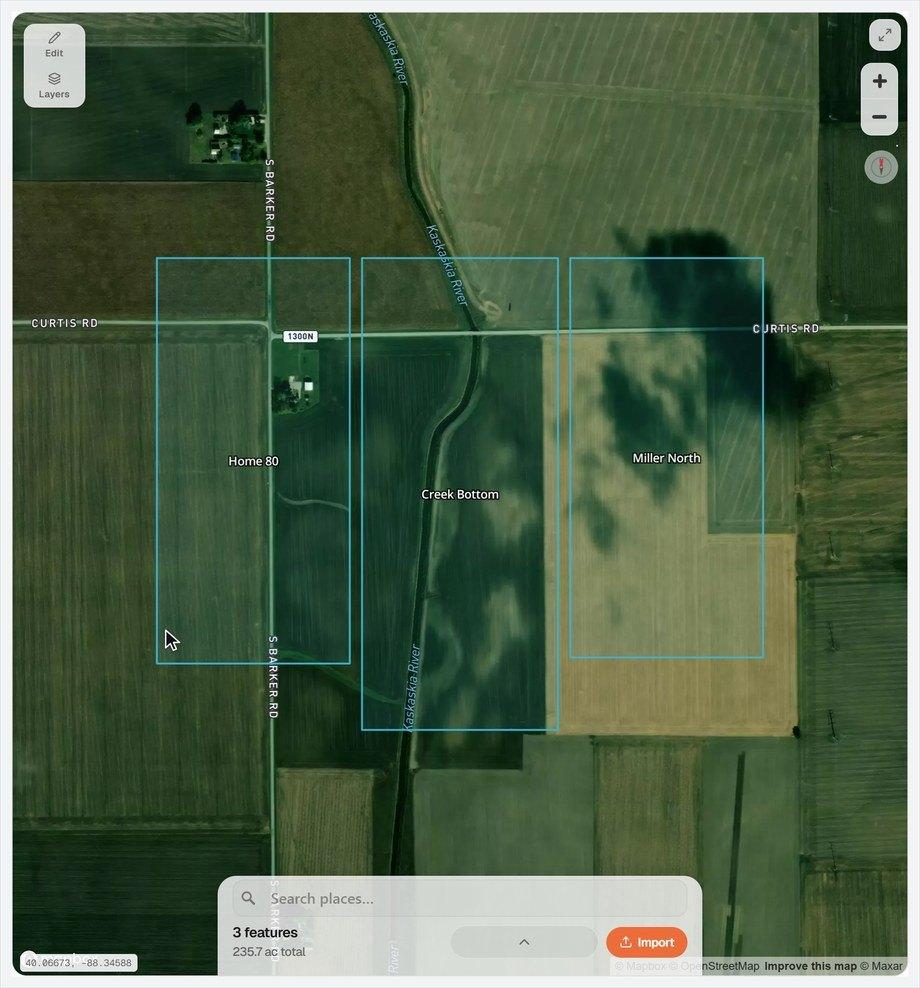
- Click Finish. A message shows how many changes were made, and your fields appear on the map.
If some of the new boundaries overlap fields you already have, it asks what to do with each one first.
Step 3. Bring in your FSA file
Bring your fields in first. AgAnswers matches each FSA field to one of your fields when the FSA file comes in.
- Click Import again and choose the farm and tract file from your FSA office.
- AgAnswers recognizes it and marks FSA reference overlay as Suggested. Leave it picked.
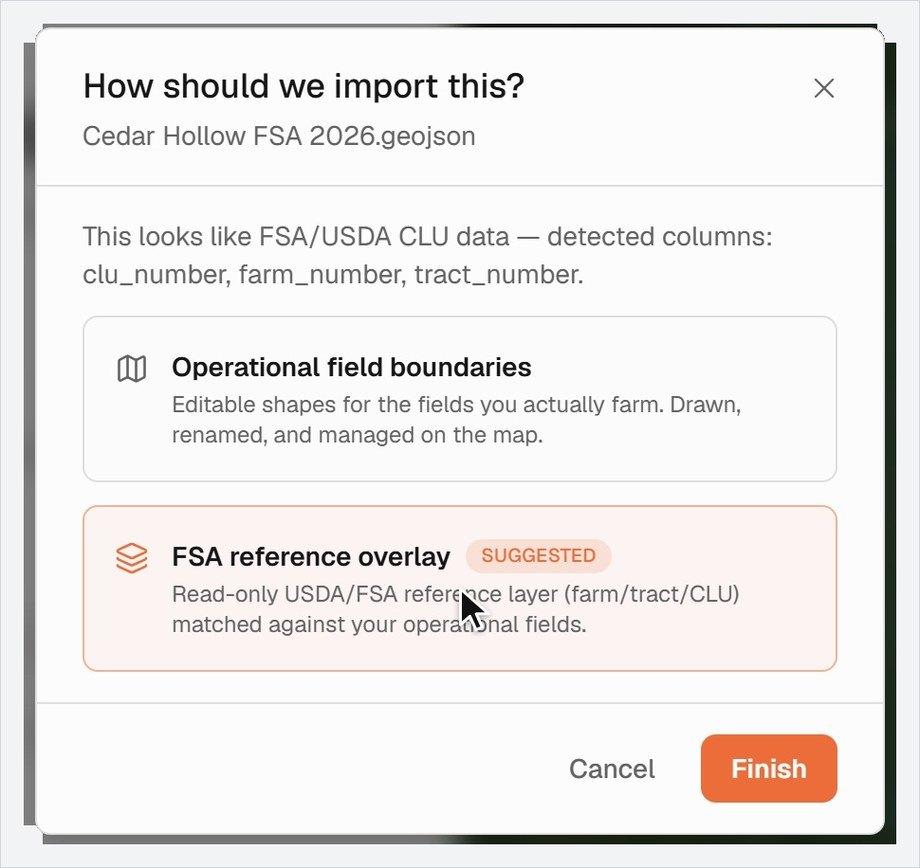
- Click Finish. A message shows how many FSA fields it matched to your fields.
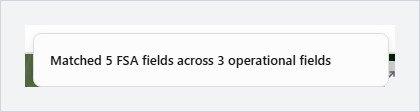
If you add fields later, import the FSA file again so the new fields get matched too.
Step 4. Check the map
- Click Layers at the top left of the map.
- Under FSA Overlay, tick your FSA file. Your FSA fields show on top of your own fields.
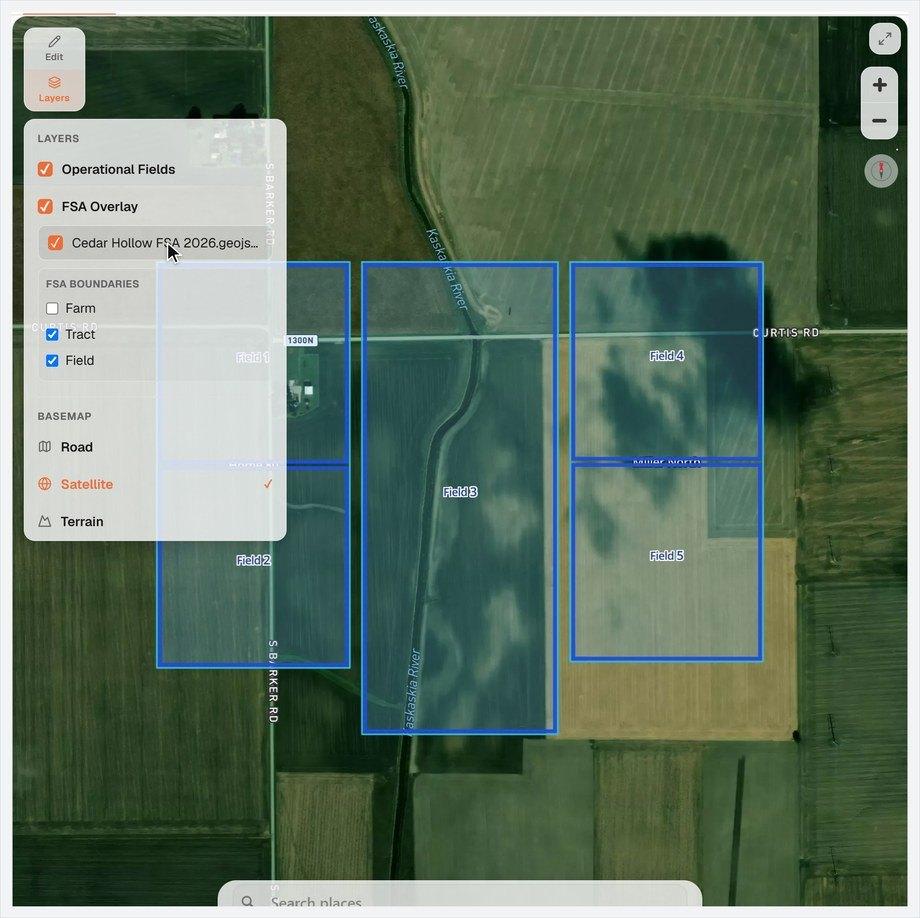
- Click Layers again to close the panel.
Step 5. Your planting records
AgAnswers needs to know what you planted on each field, when, and your share.
- If your John Deere account is connected, or your plantings are already saved in AgAnswers, they're already there. Go to step 6.
- If not, tell it in the chat, the way you'd say it. For example: Corn on Home 80, planted May 2. Soybeans on Creek Bottom, May 9. Corn on Miller North, May 4. Dana Ruiz has a 100% share on all three.
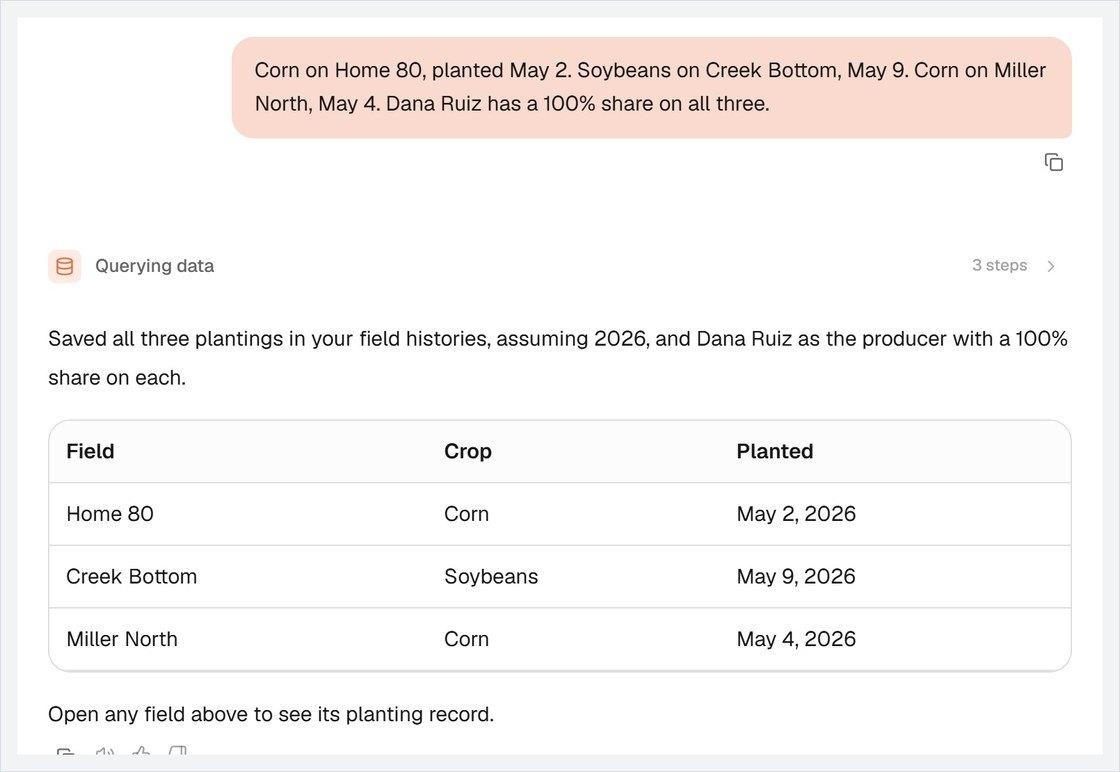
It saves each planting to that field's history and shows you what it saved.
Step 6. Ask for your report
- In a new chat or the one you have open, type make my FSA acreage report for 2026 (use your year) and send it.
- It asks where to pull your plantings from: your saved records, John Deere Operations Center, or a mix of both. Answer with what fits your farm. It remembers your answer for next time.
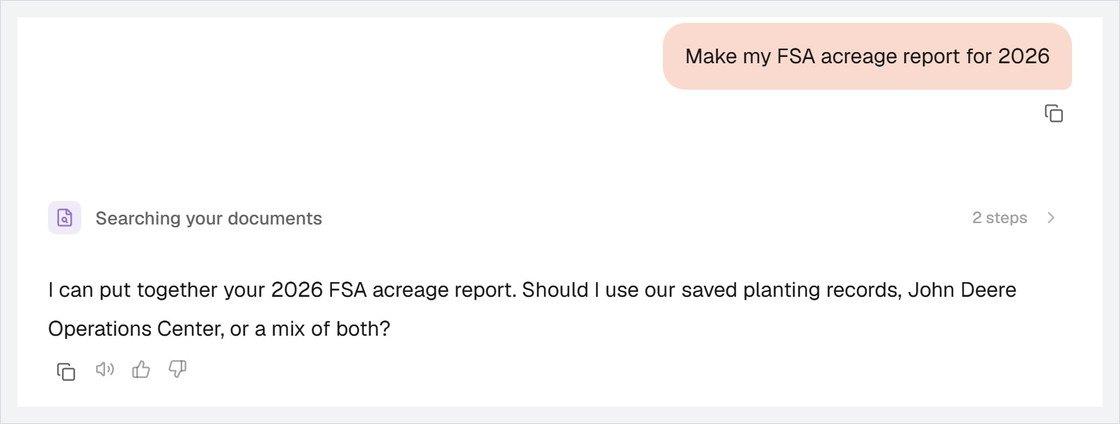
If you already made a report in this chat, start a New chat for another one.
Step 7. Check your report
The report lists every FSA field with its farm number, tract number, field ID, acres, crop and share, with crop totals under it.
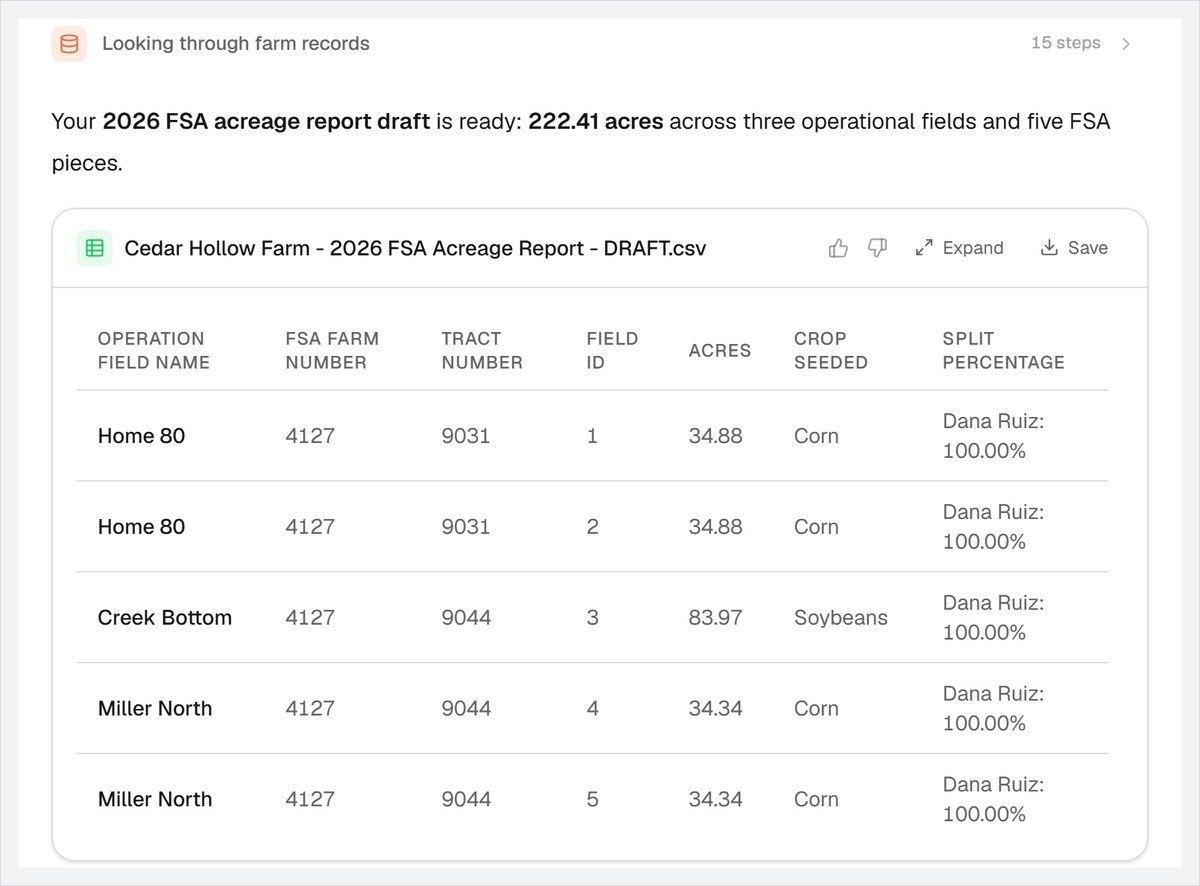
- Read the note under the report. It flags anything to check before you file, like FSA acres that differ from your own field acres.
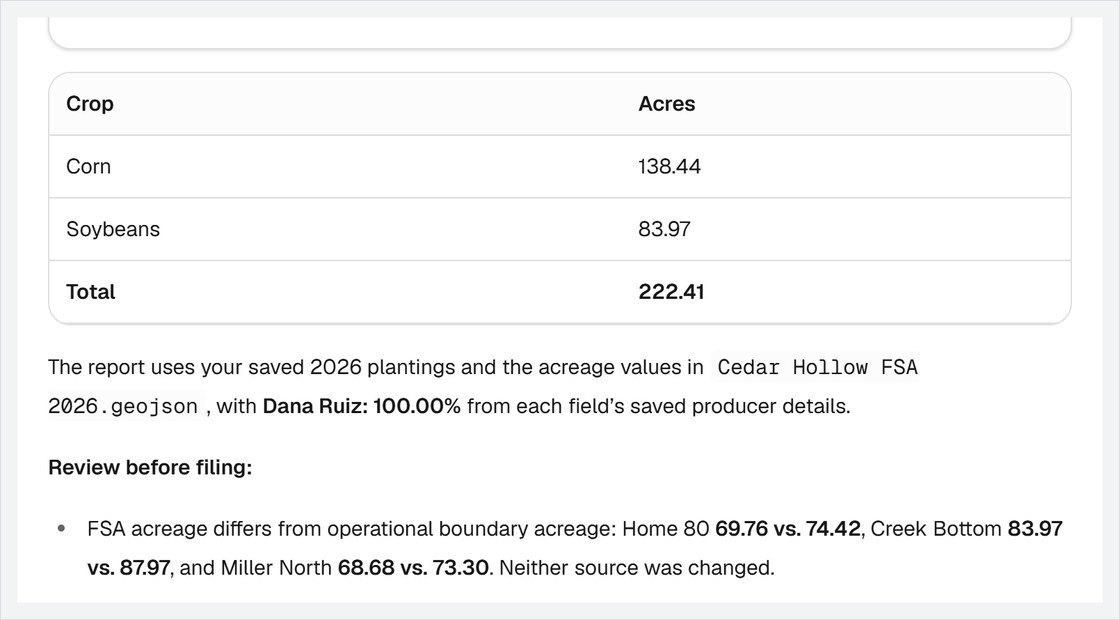
- If a share shows Not recorded, tell it who the producer is and their share, then ask for the report again.
- To keep a copy, click Download at the top of the report. It downloads a spreadsheet file (CSV) that opens in Excel.
Step 8. Fill in your FSA maps
If you have your FSA maps as a PDF, AgAnswers can mark each field with its crop and planting date.
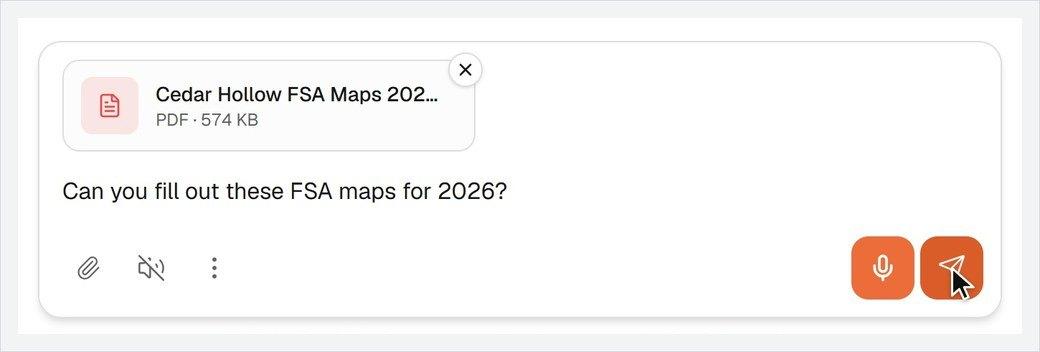
- Start a New chat, click the paperclip (Attach file) and choose your FSA map PDF.
- Type can you fill out these FSA maps for 2026? and send it.
- It matches each field on the maps to your records and lists the labels it will add. It may ask you to confirm the producer share and the crop abbreviations, like CORN and SB.
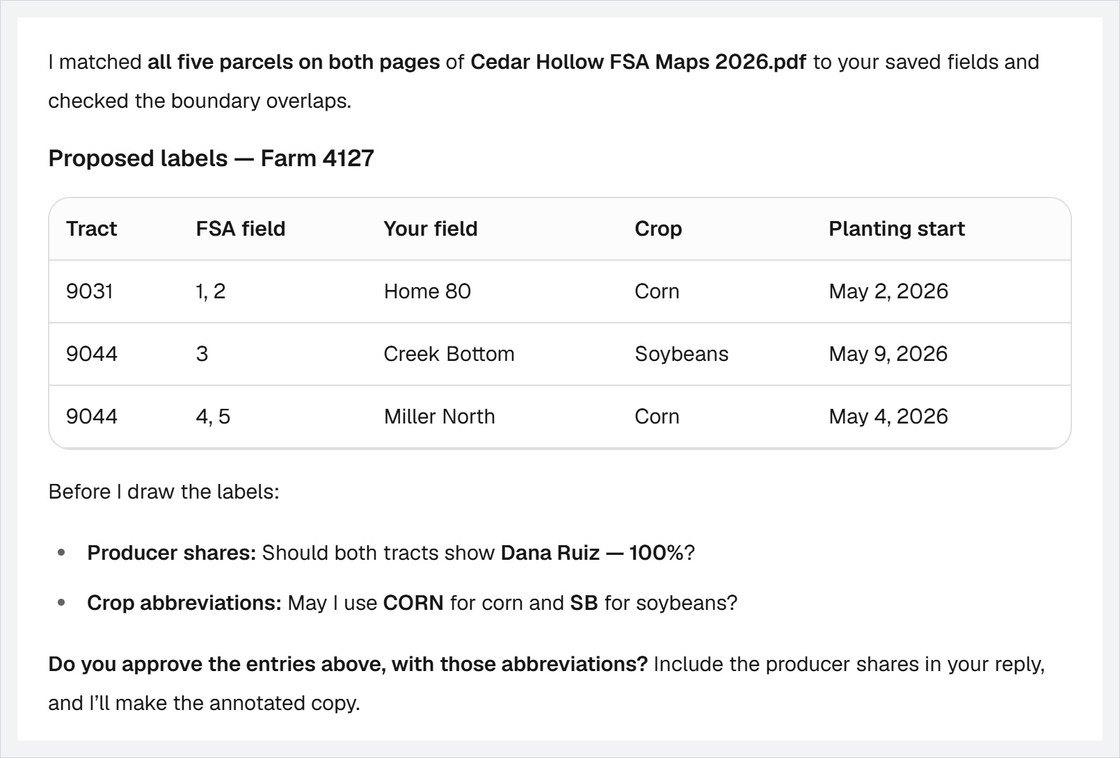
- Check the list. If it looks right, reply yes, with any answers it asked for.
- It adds the labels and shows the filled in maps. Click Download to keep a copy, and take them to your FSA office.
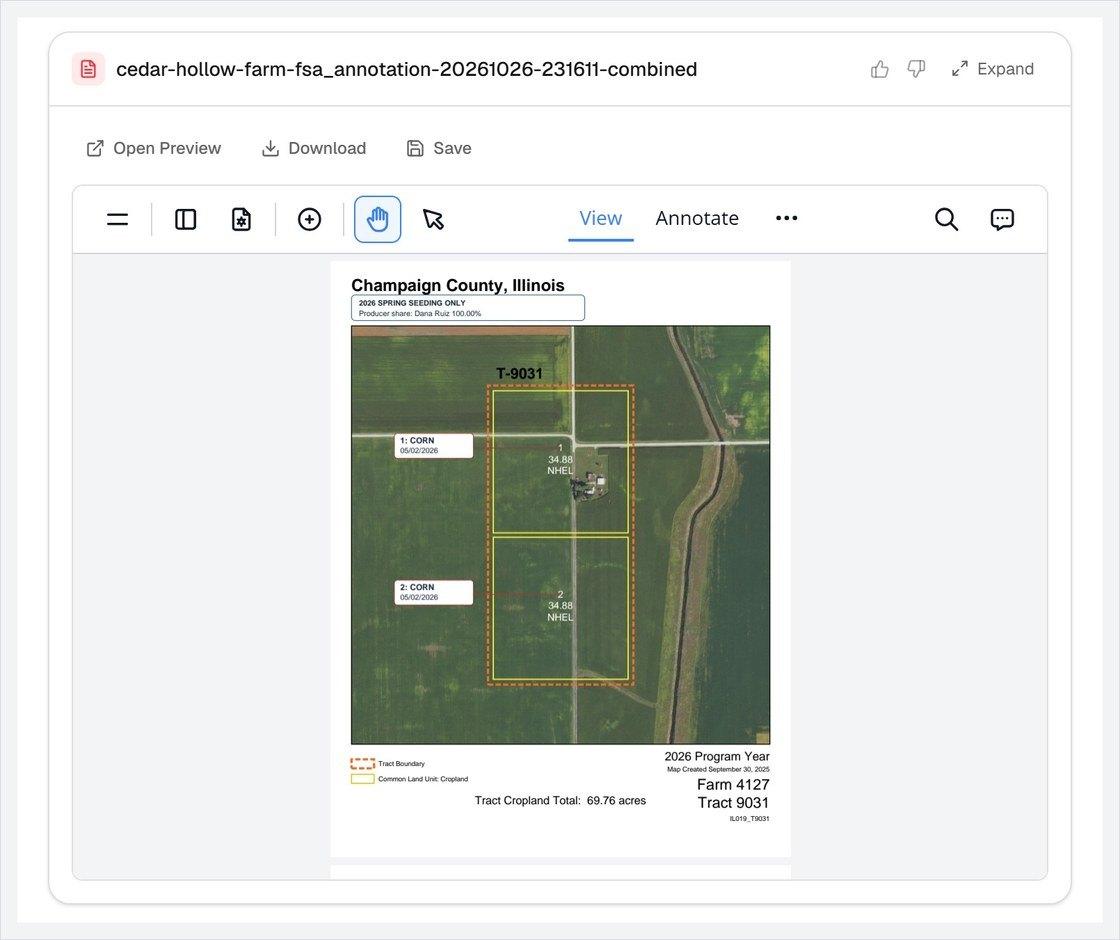
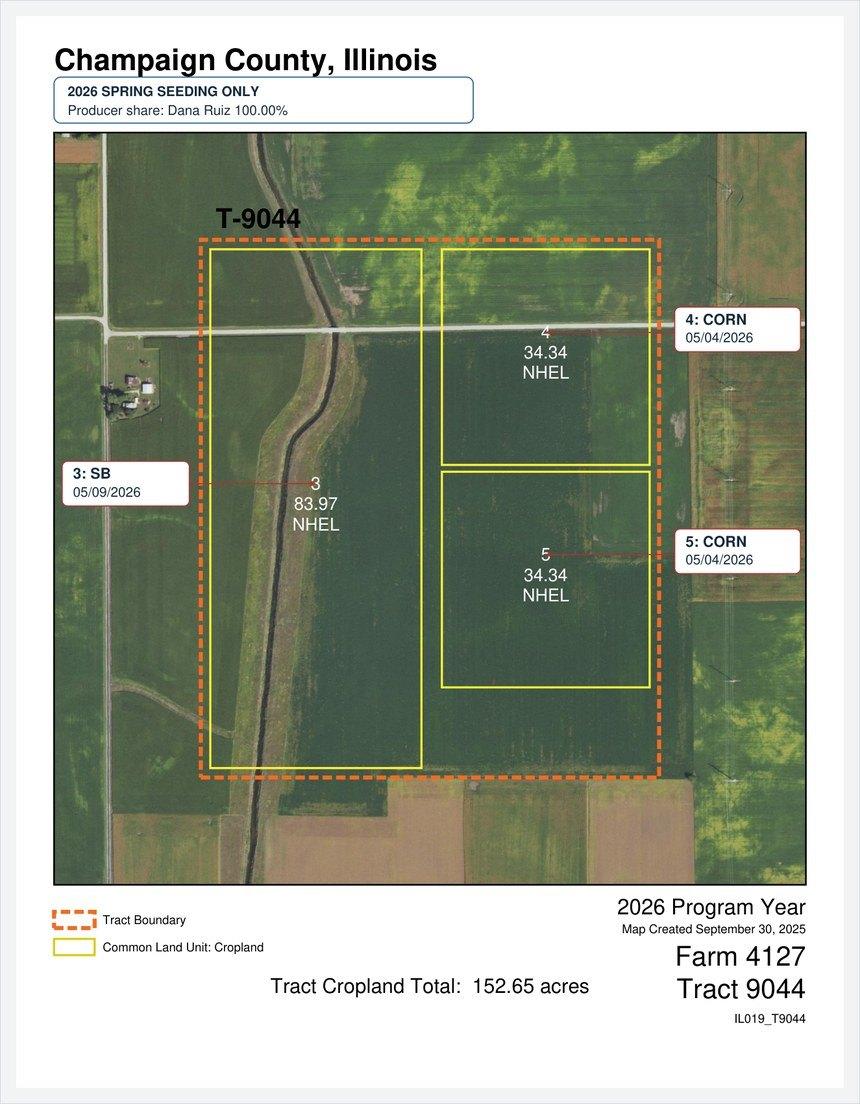
Each page gets a box at the top with the season and the producer share, and a label on every field with its crop and planting date, pointing to the field number. Your original PDF stays unchanged.
Good to know
- The report and the filled in maps are for you to check and take to your FSA office. AgAnswers doesn't file anything with FSA.
- FSA acres come from your FSA file. Your own field acres can differ a little; the note under the report shows where.
- Map labels are only drawn after you say yes to the list.