Connect your John Deere Operations Center account once. Then ask AgAnswers for a variable rate prescription for any of your fields: it builds zones from satellite images of the field, puts your rate on each zone, and sends the file to your John Deere account, ready for your display. Watch the video, or follow the steps below at your own pace.
Connecting John Deere is for managers and admins. Making a prescription is for the farm's owner.
What you'll need
- Your John Deere Operations Center login.
- Your fields in AgAnswers, from John Deere or from a boundary file.
- The product you're putting down and the rate you want on each zone, like gallons per acre.
Already connected? If John Deere already shows Connected in Settings, skip to step 3.
Step 1. Connect John Deere
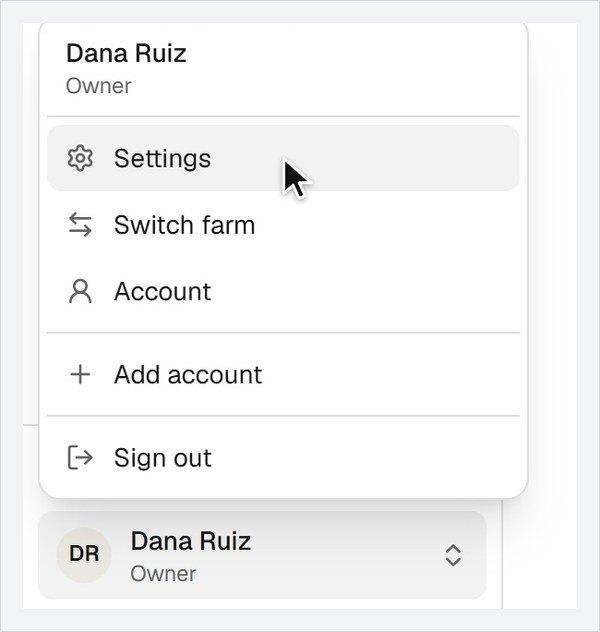
- Click your name at the bottom left, then Settings.
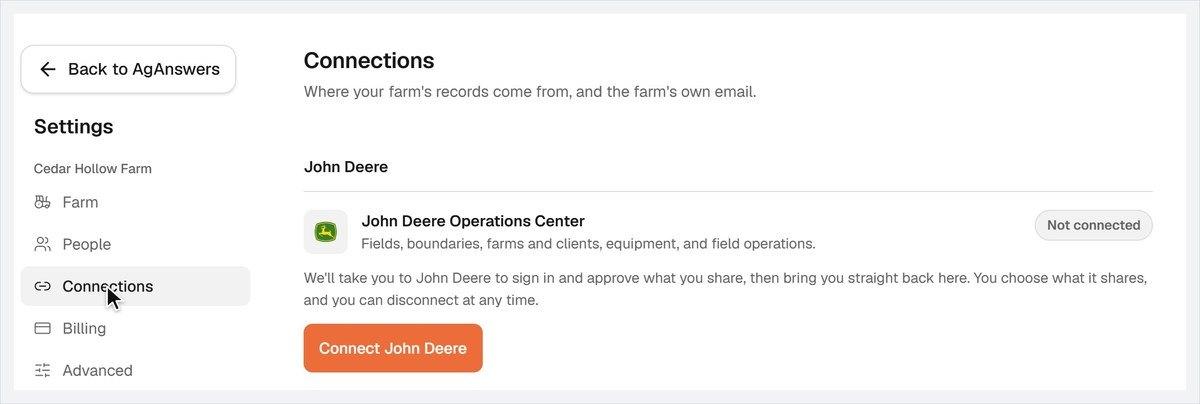
- Click Connections. Under John Deere, click Connect John Deere.
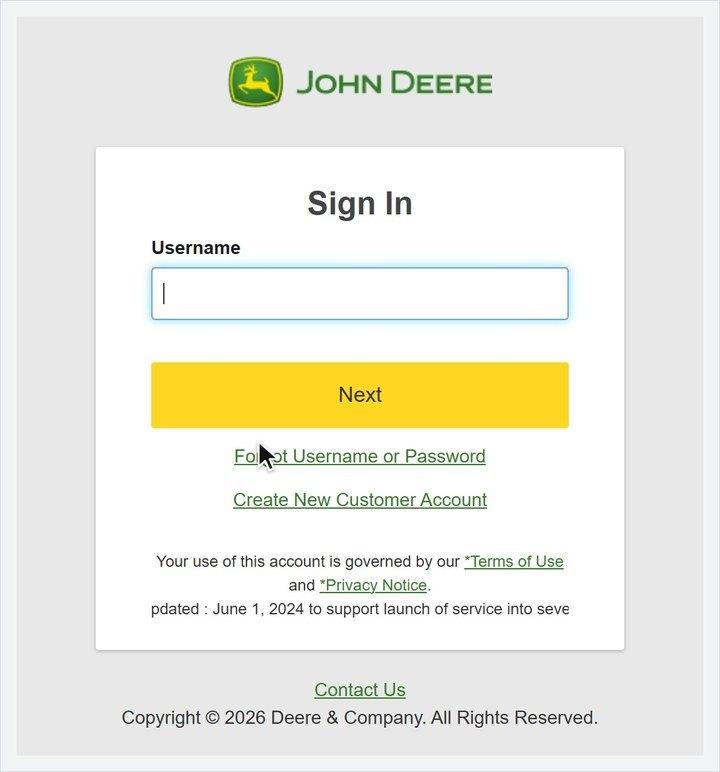
- On John Deere's page, sign in and approve what AgAnswers can see. If your account has more than one organization, AgAnswers asks you to Choose a John Deere organization; pick yours and click Sync this organization.
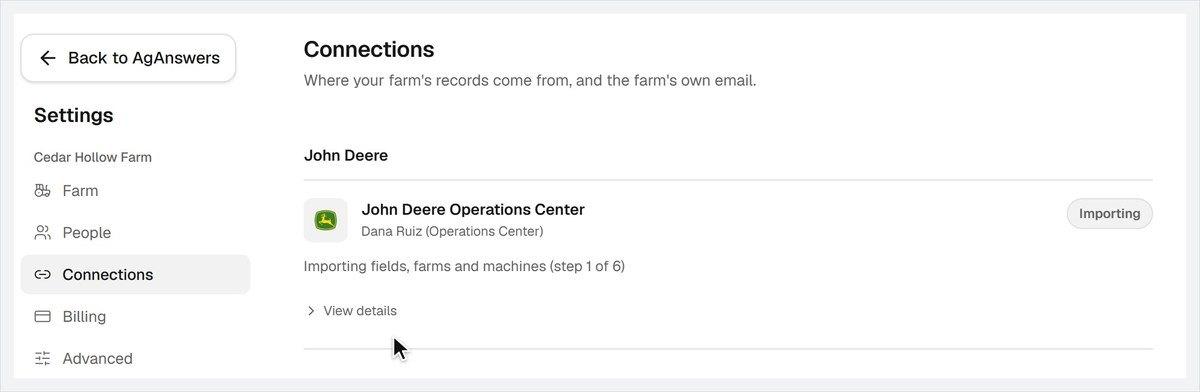
- You come straight back to Connections, and the card says Importing.
Step 2. Watch your records come in
- Click View details to see each kind of record as it arrives: fields, boundaries, farms, field work, machines and more. The import runs in six steps.
- When it's done, the card says Connected with the time of the last import. To pull in new records at any time, click Import now.
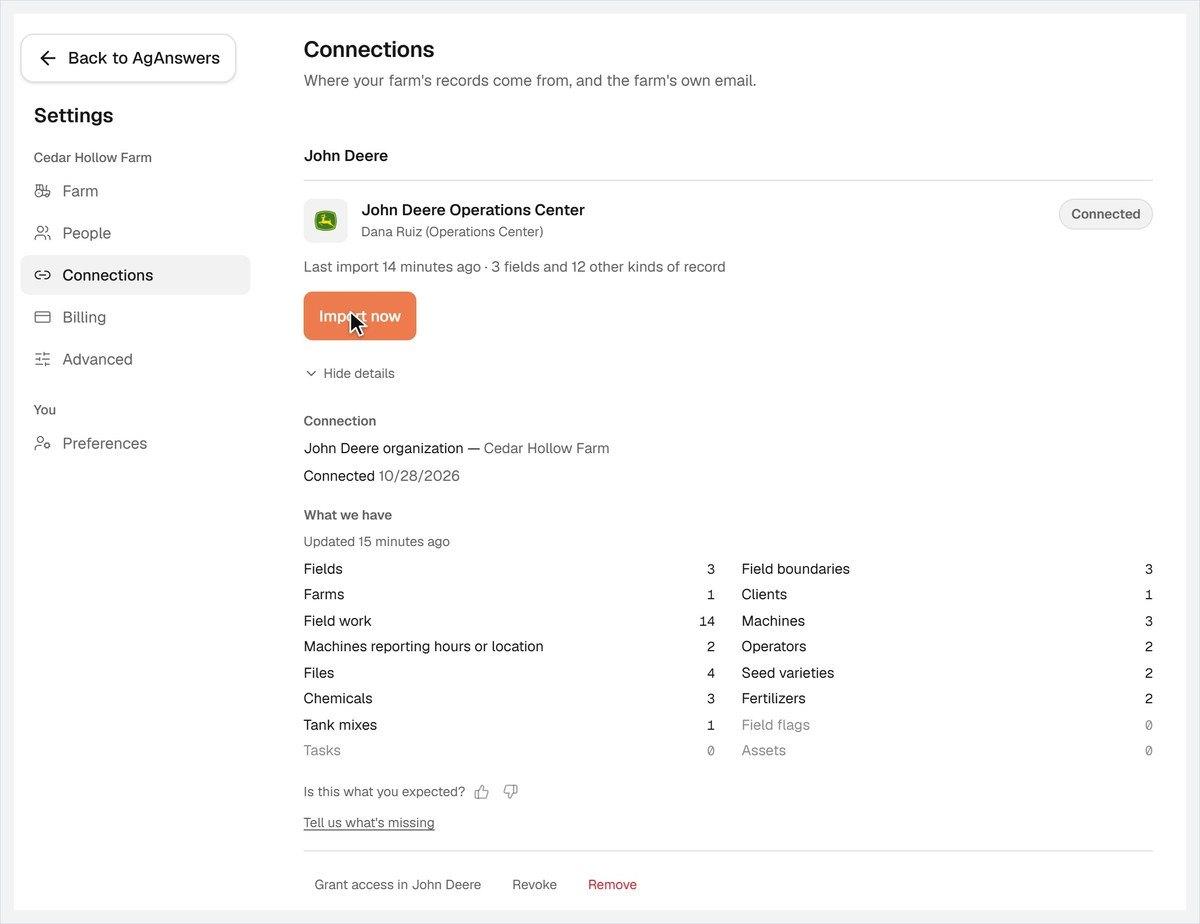
A big farm can take a while to import. You can keep working meanwhile.
Step 3. Ask for a prescription
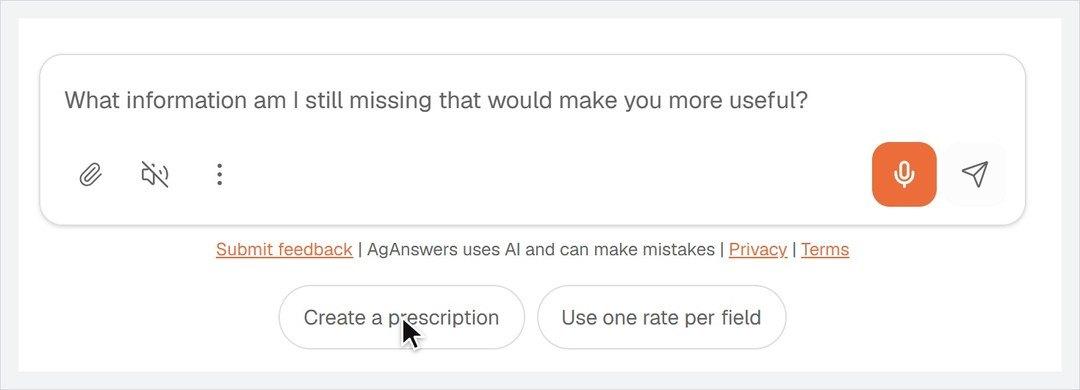
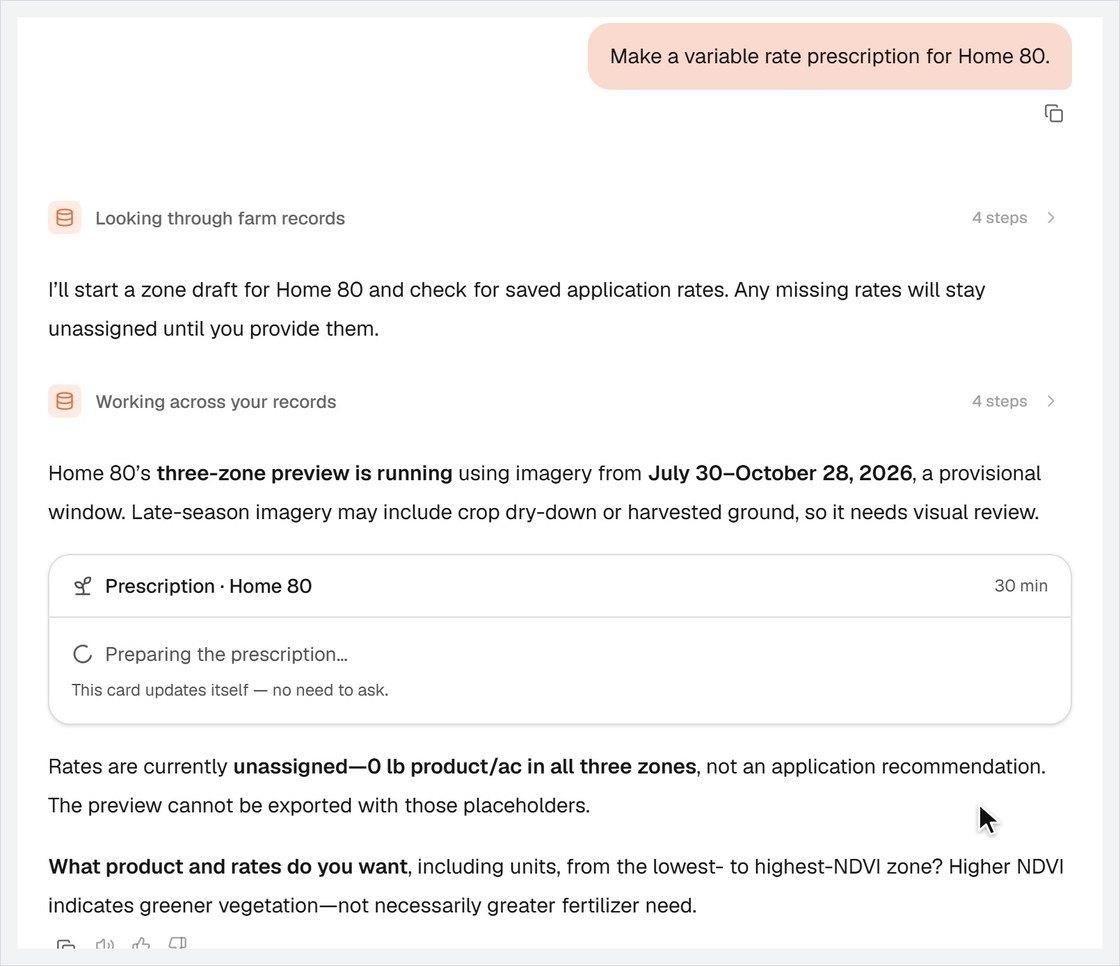
- Open a new chat. Click Create a prescription, or just ask in your own words and name the field, like Make a variable rate prescription for Home 80.
- A prescription card appears and reads the satellite images of that field. It splits the field into zones by how well the crop grew. The card updates itself; there's no need to ask again.
Step 4. Pick the image date
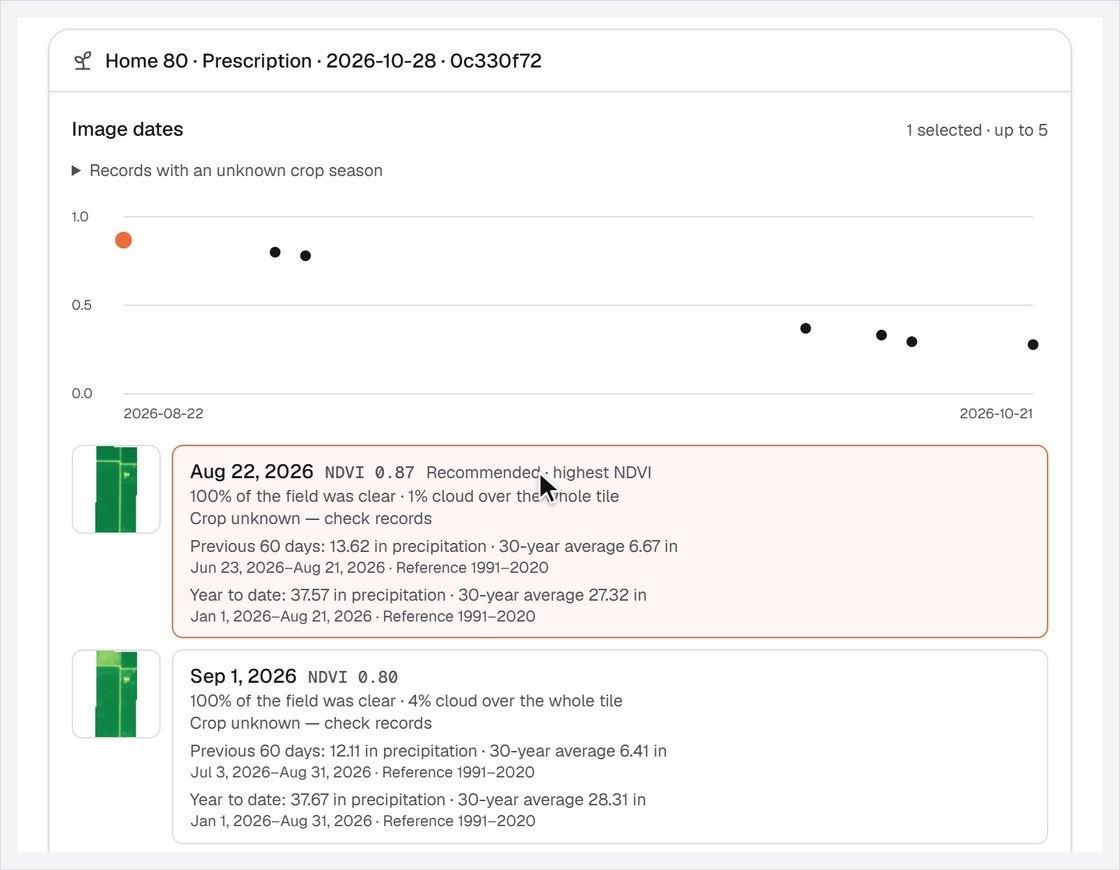
The card lists the image dates it can use, with how clear the field was in each. It marks the clearest, greenest one Recommended · highest NDVI (NDVI measures how green the crop is). If you know that day was off, pick a different date in the list, up to five, or ask for one.
Step 5. Set your product and rates
- Tell it your product, units and the rate for each zone, the way you'd say it. For example: 32% UAN, gallons per acre. Low 28, medium 32, high 36.
- It saves the rates and rebuilds the zones. Want more detail? Ask for four or five zones instead of three.
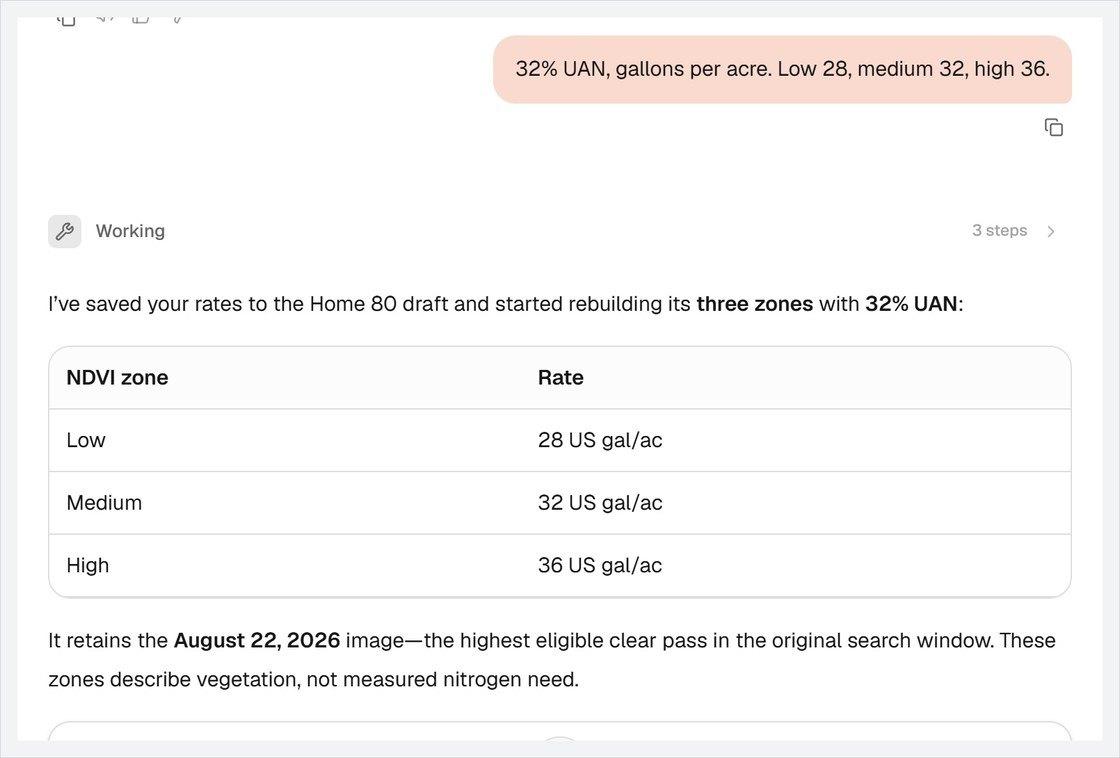
Rates are in pounds, gallons, kilograms or liters of product, per acre or per hectare.
Step 6. Check and create the file
- Check the map and the table: each zone's acres and rate, how it compares with the field's average, the average rate and the total product you'll need.
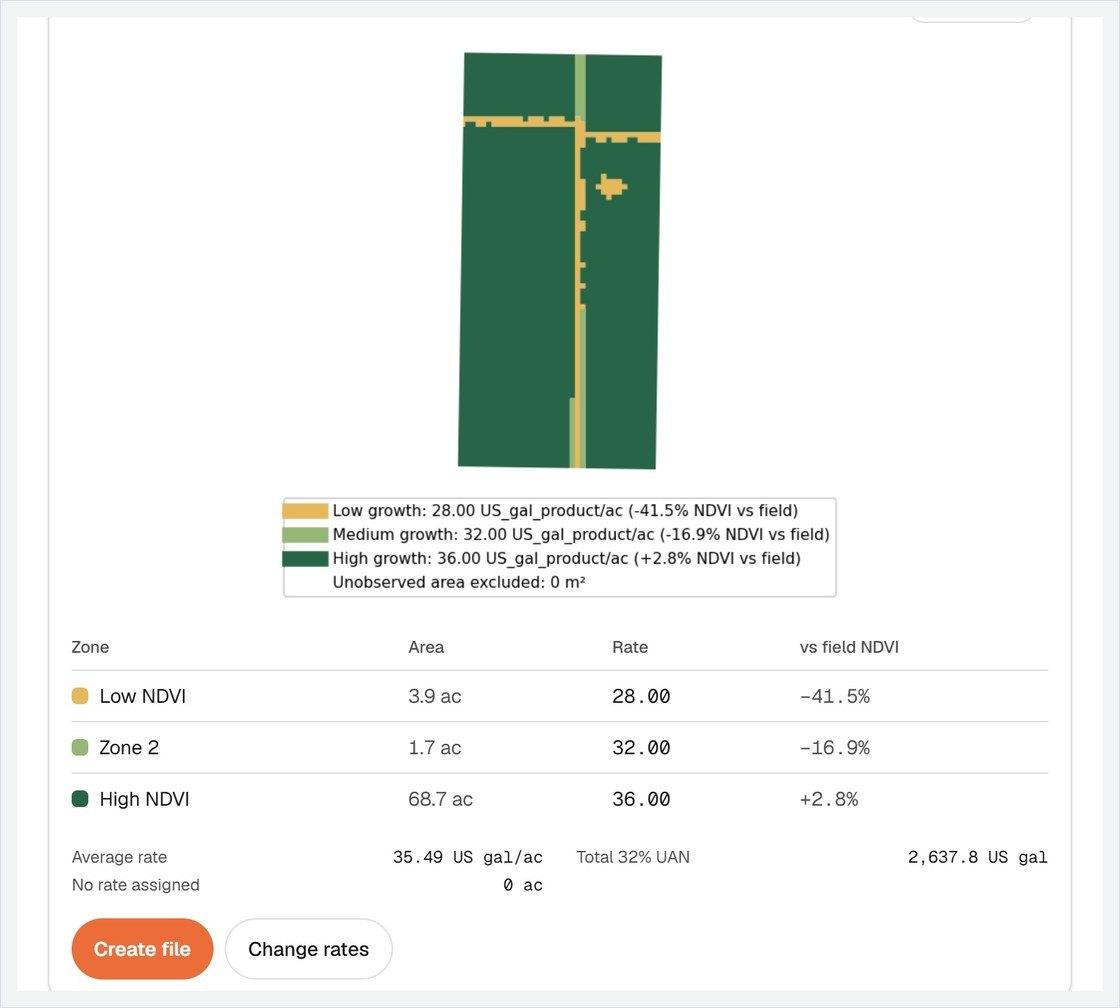
- When it looks right, click Create file.
- Not running John Deere? Click Download ZIP to get the file for your own display.
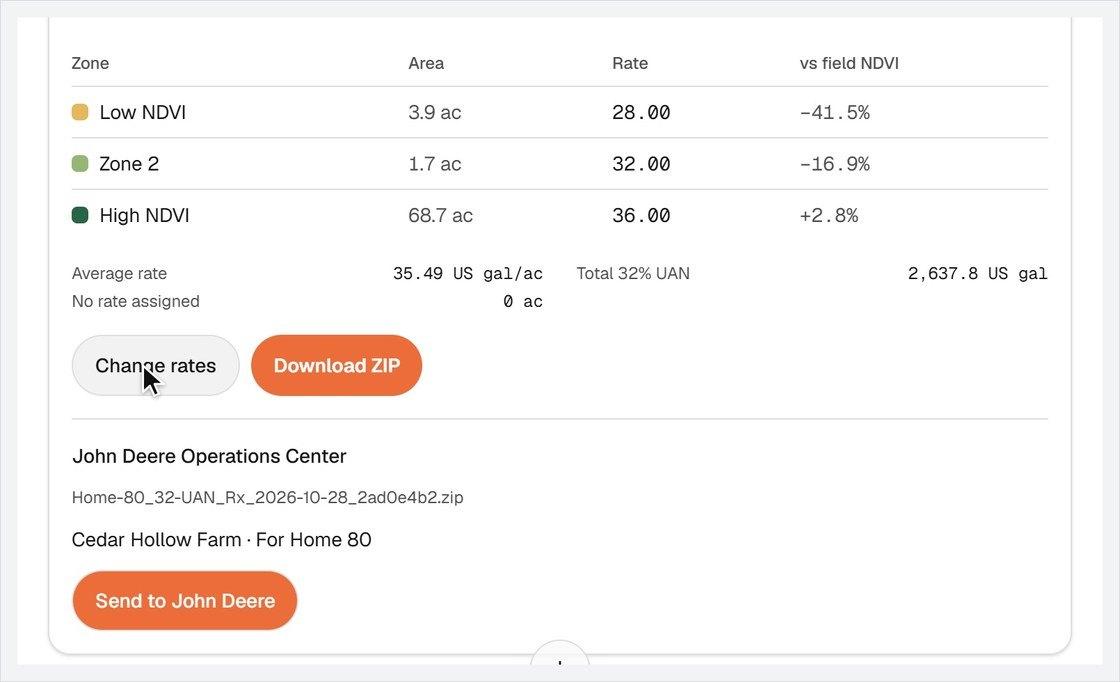
Step 7. Send it to John Deere
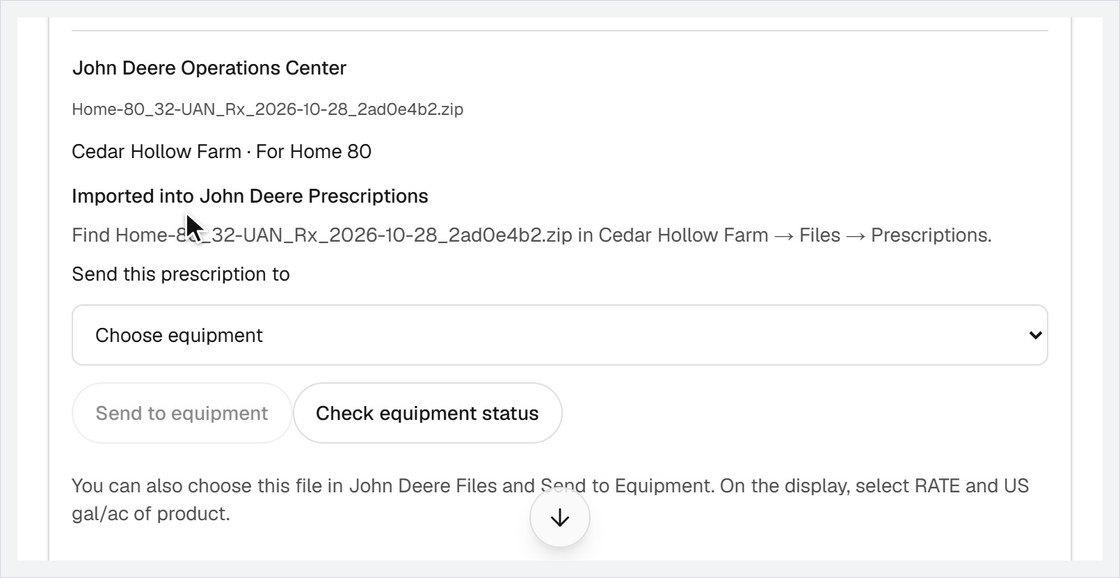
- Click Send to John Deere. In a few seconds the card says Imported into John Deere Prescriptions, and tells you where to find it: your organization, then Files, then Prescriptions.
- In John Deere Files, choose the file and Send to Equipment. On the display, select RATE and the units you set.
Good to know
- Zones come from satellite images of how green the crop was. They show where it grew better or worse, not how much fertilizer each spot needs, so check them against what you know about the field.
- Seeding rates in seeds per acre aren't available yet; rates are amounts of product.
- Nothing goes to John Deere until you click Send to John Deere.