Tell AgAnswers what to keep track of, and it builds the table for you. Describe what you want to track, like custom work for neighbors. AgAnswers sets up the table, asks before it saves, and answers questions from it later. Watch the video, or follow the steps below.
What you'll need
- What you want to keep track of, like custom work for neighbors.
- Your list of jobs: who, what, the acres, the amount, and if they've paid.
- A few minutes.
Already saved one? Skip to step 4.
Step 1. Say what to track
- In the chat, say what you want to keep track of, like “Keep track of the custom work I do for neighbors.” Then list the jobs.
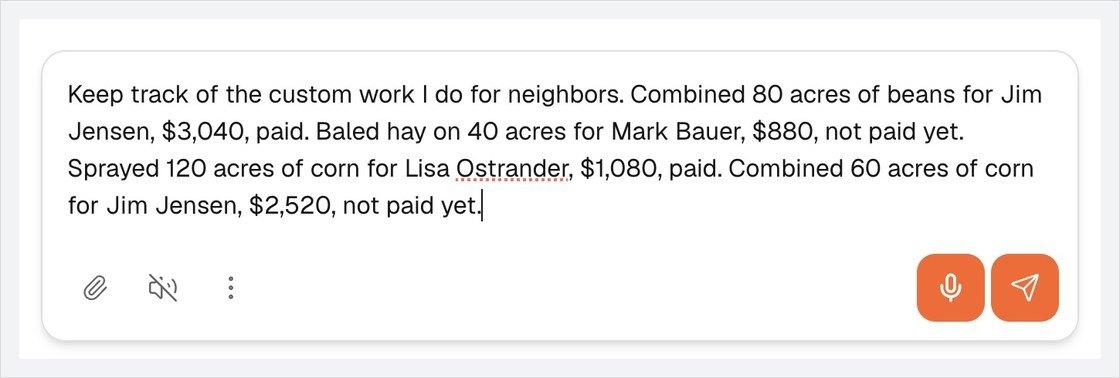
- Send it.
Step 2. Check the table
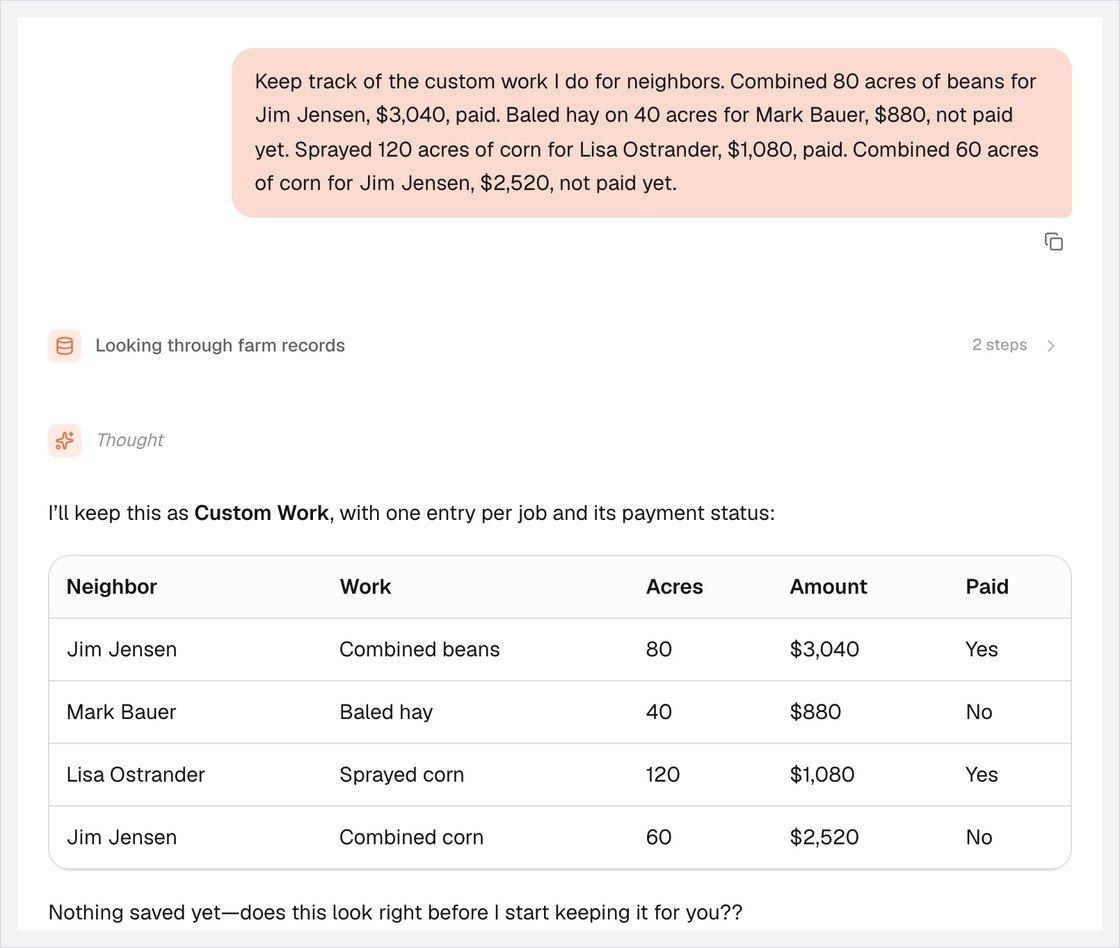
- AgAnswers shows you the table it will make, one row for each job. Look it over.
- Nothing is saved yet. It asks before saving.
Step 3. Save it
- If the table looks right, say Yes, save them.
- AgAnswers saves the jobs in your set, here Custom Work.
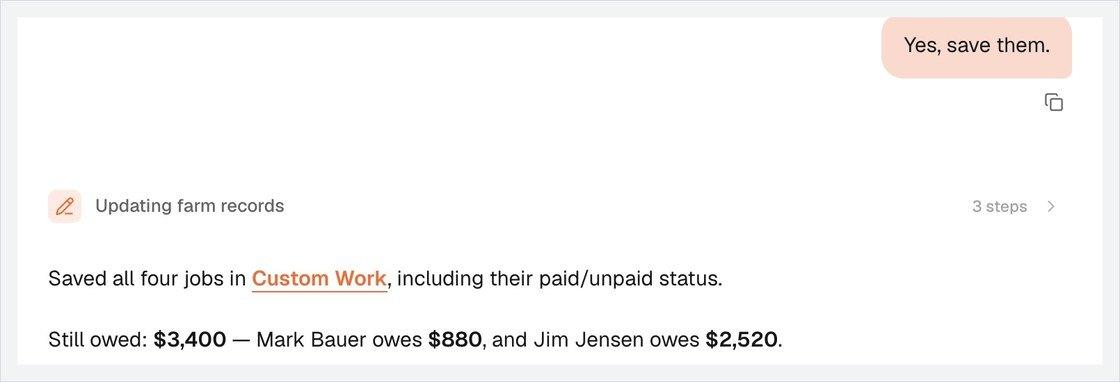
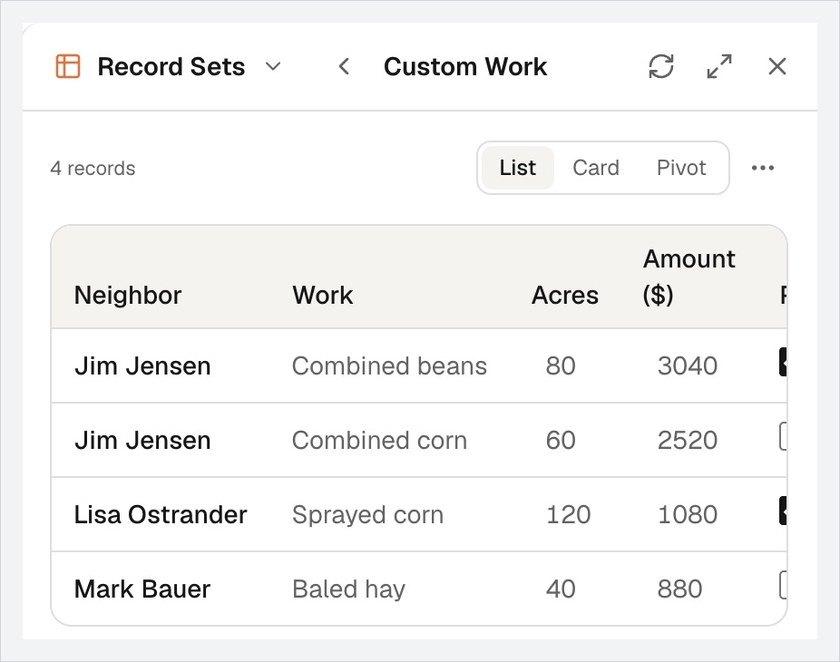
- Click the set's name to see your saved records. They open in the Record Sets panel at the right.
Step 4. Ask anytime
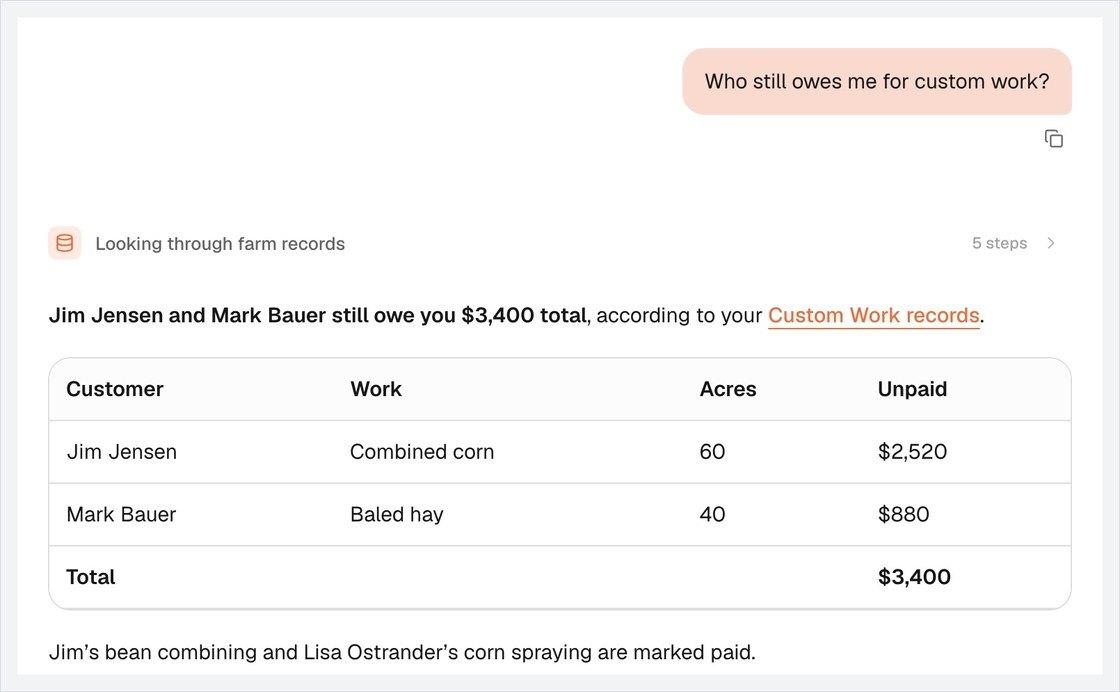
- Later, even in a new chat, ask a question, like “Who still owes me for custom work?” AgAnswers answers from your saved records.
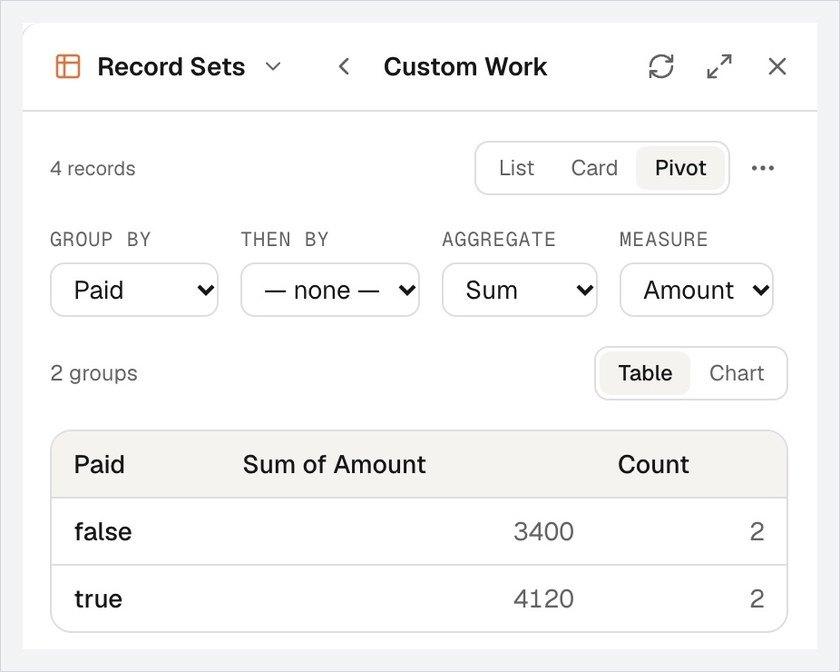
- Or open the set and click Pivot. Group by Paid and add up the amounts: false means not paid yet.
Good to know
- Your sets are under Record Sets in the sidebar, with List, Card and Pivot views.