Take a photo of a scale ticket and AgAnswers fills in the weights, the ticket number, the field, the driver, the bin and the crop. Do a whole stack in one photo, see your harvest add up by field and by bin, have your crew send tickets in from the truck, and export it all to Excel. Watch the video, or follow the steps below at your own pace.
Adding a crew member's phone number is for owners with admin rights.
What you'll need
- Your scale tickets, on paper or a photo of them.
- Your fields set up in AgAnswers.
- Your phone, and your crew's for step 6.
Tickets already in? Skip to step 5.
Step 1. Set up your lists
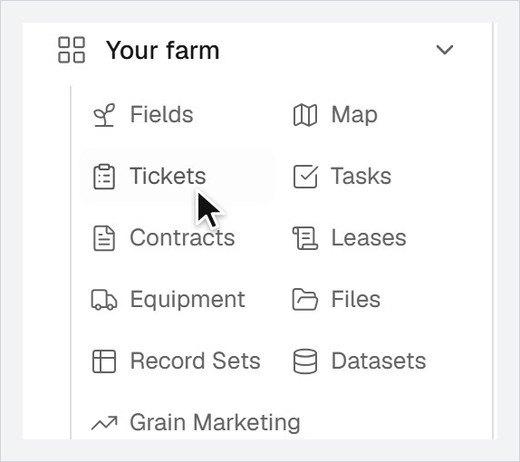
- In the sidebar, under Your farm, click Tickets.
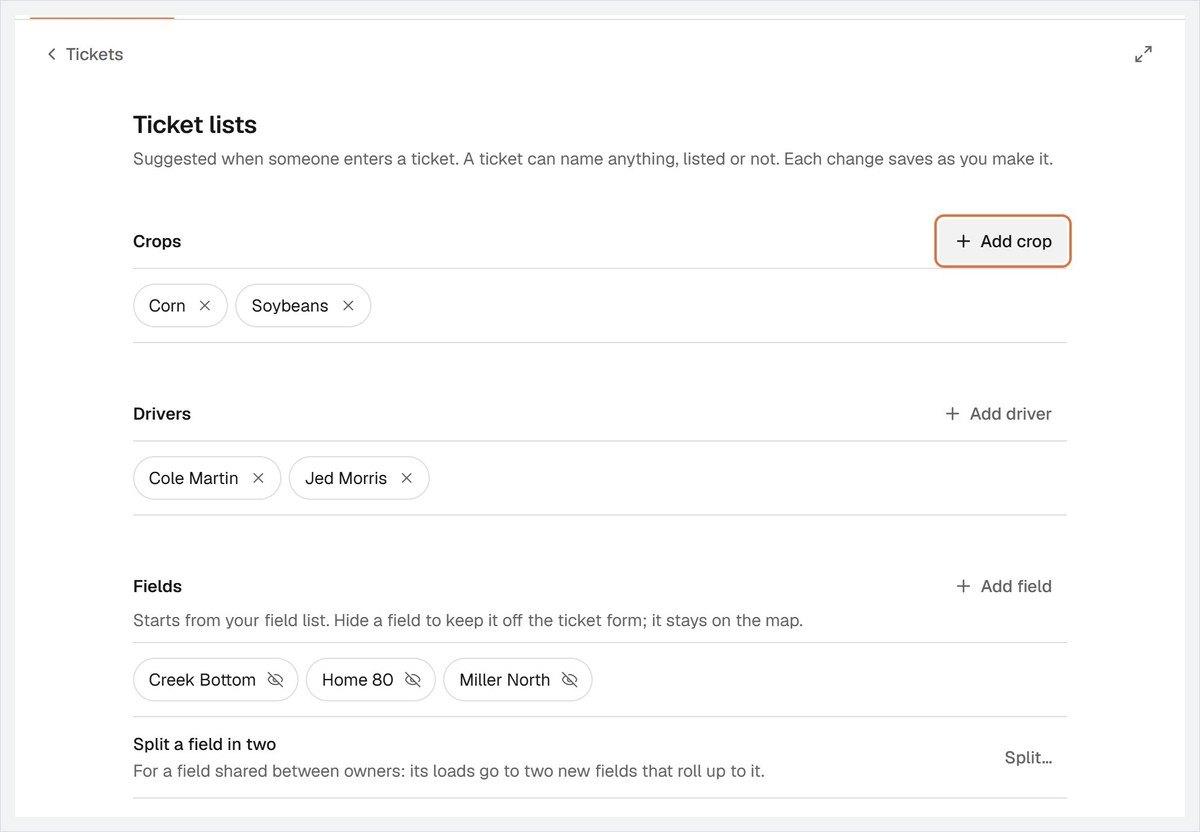
- Click Edit lists. Under Crops, click Add crop, type the name and press Enter. Do the same for Drivers. Your fields are already listed, from your farm.
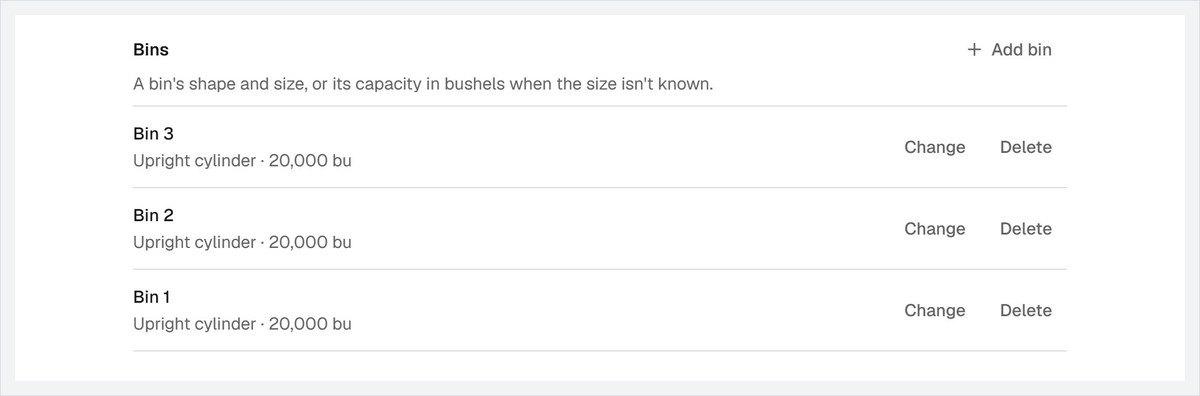
- Under Bins, click Add bin for each place grain goes.
Tip: Scans fill in the field, driver, bin and crop only with names on these lists, so your totals line up. Give crops their full name, like Soybeans rather than Beans, so bushels are worked out at the right weight.
Step 2. Snap a ticket
- Click New ticket, then Scan ticket photo. On your phone, take the picture right there. On a computer, pick the photo.
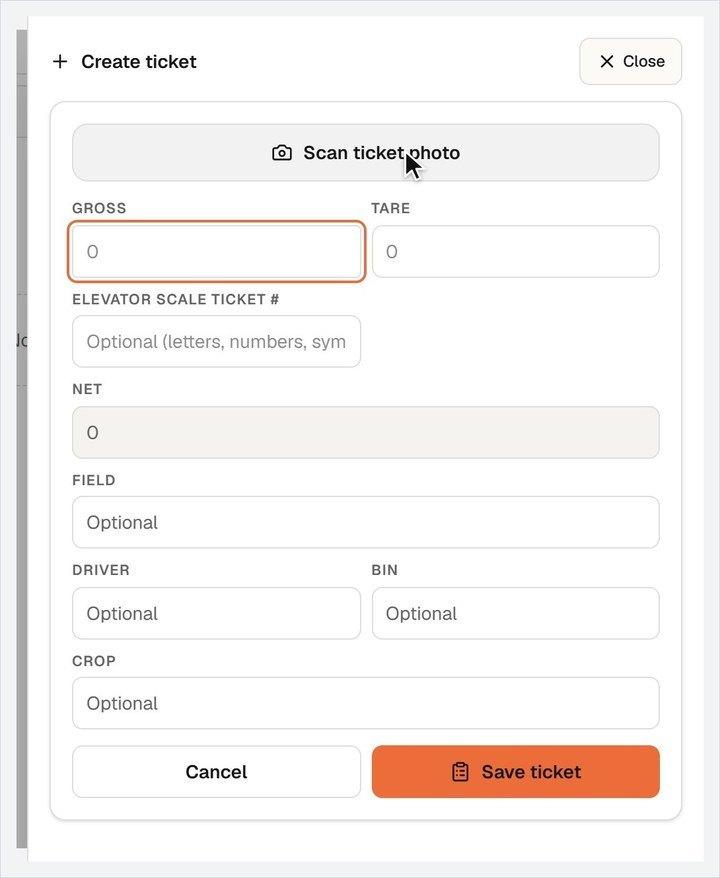
- In a few seconds it fills in the weights, the elevator's ticket number, the field, the driver, the bin and the crop. Net is worked out for you.
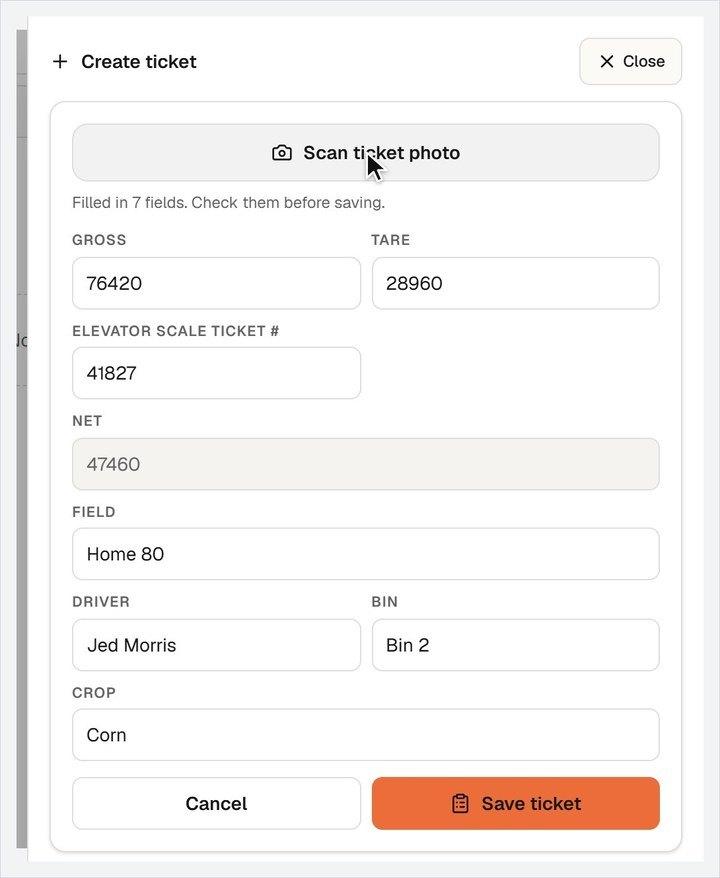
Tip: Lay the ticket flat in good light, with the whole ticket in the picture.
Step 3. Check it
- Look over each value against the ticket, and change any that's off.
- Click Save ticket. Nothing is saved until you do.
- Handwritten slips work too. Anything it wasn't sure of is outlined, with Hard to read on the photo underneath. Look at those first.
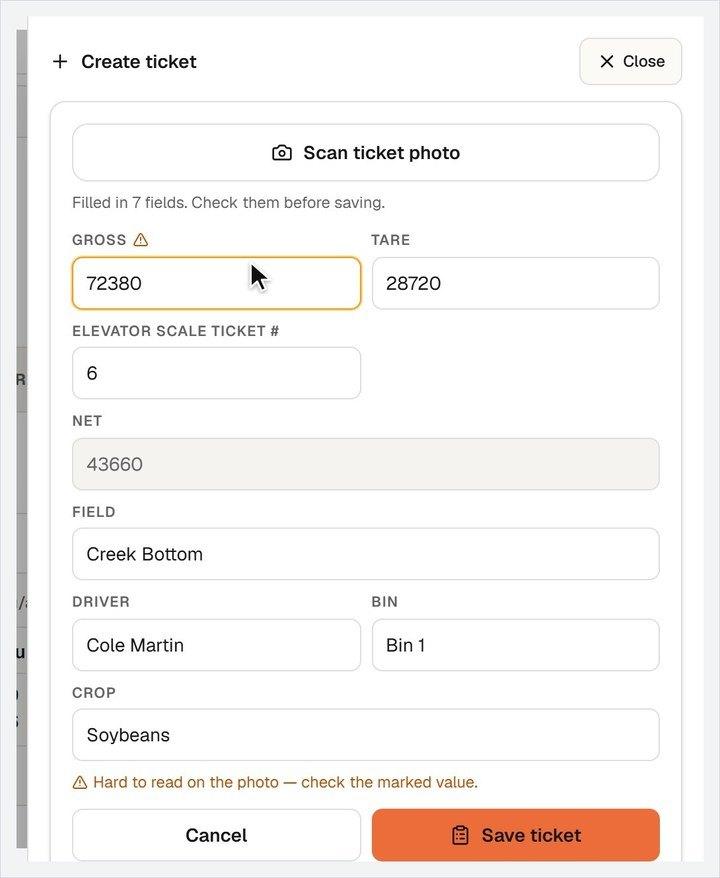
In this example the gross was corrected by hand on the slip. AgAnswers read the corrected number and outlined it to check. The "6" was the slip's load number, not an elevator ticket number, so clear it before saving.
Step 4. Do a whole stack at once
- Lay the tickets out and take one photo. It finds every ticket in the picture, for example 4 tickets scanned.
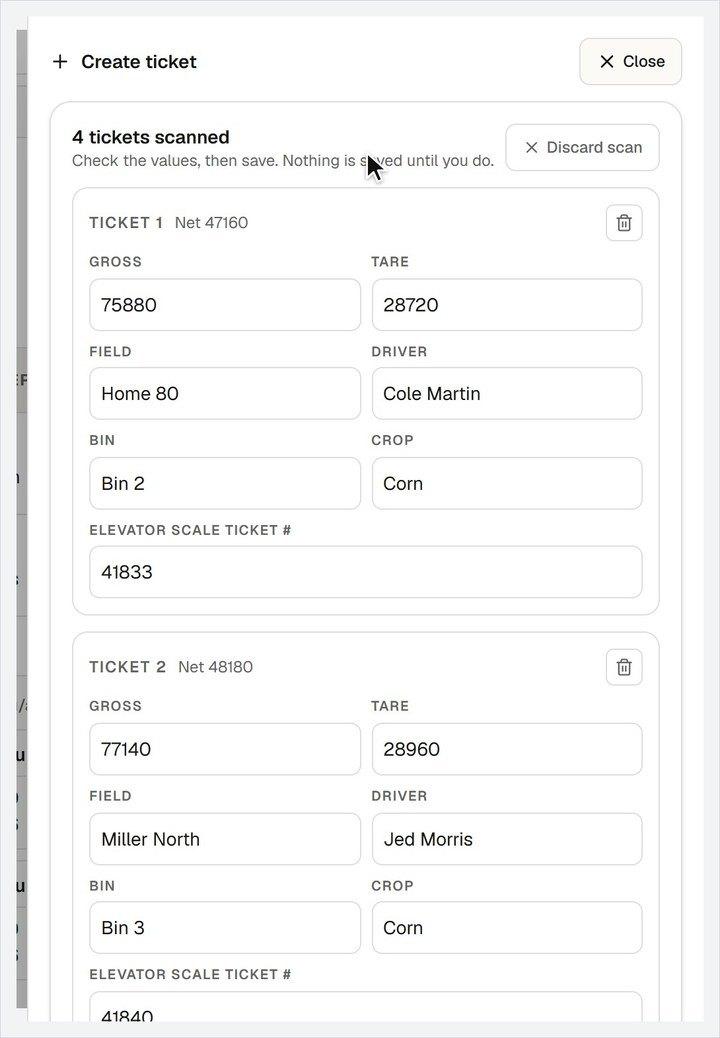
- Check each one. To leave one out, click its trash can.
- Click Save 4 tickets (the button counts them).
Step 5. See your harvest
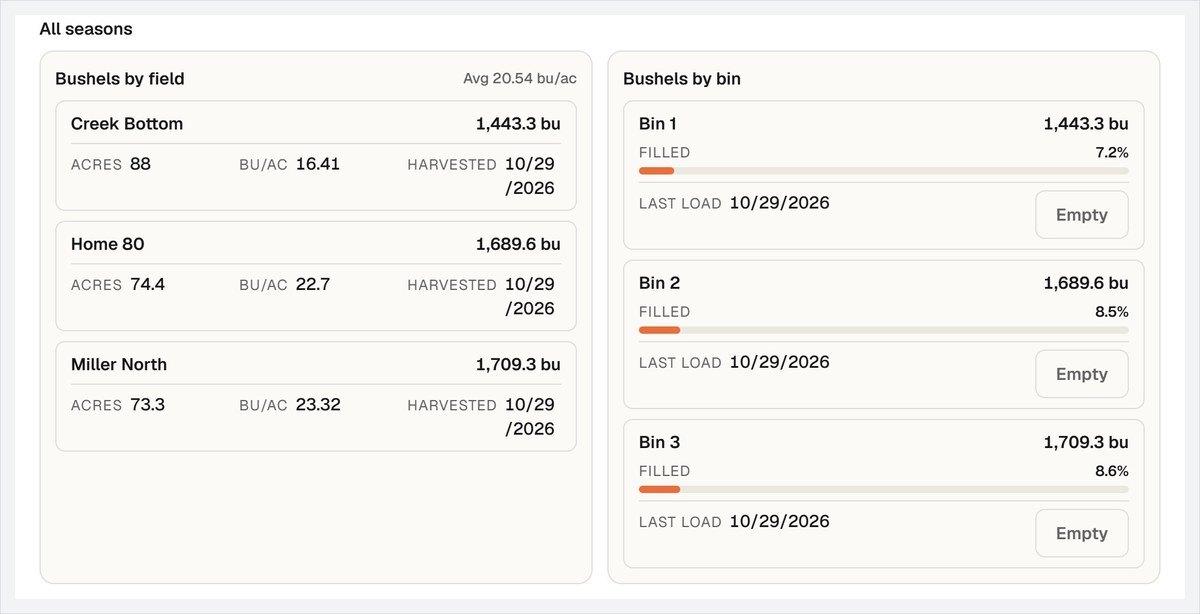
- Every load is on the Tickets page, with bushels for each crop at the top. Pick Today, Last 7 days or All.
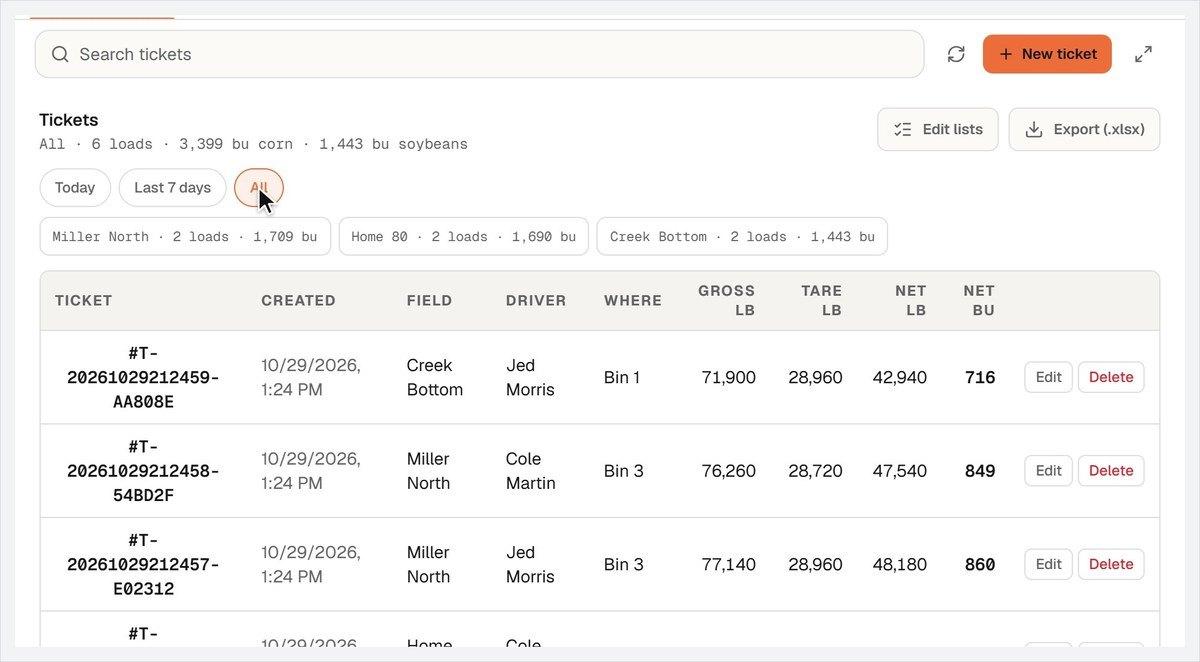
- Below the list, Bushels by field shows each field's bushels, acres and bushels per acre, and Bushels by bin shows what went into each bin and how full it is.
Step 6. Have your crew send them in
- Click your name at the bottom left, then Settings, then People.
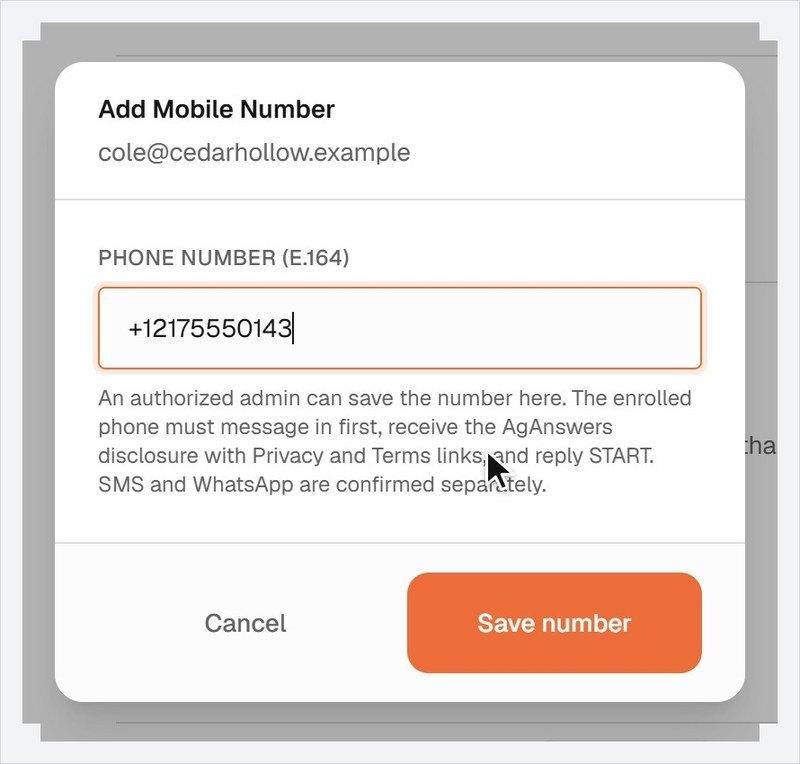
- On their row, click Add number. Type their cell number with the country code (+1 for the U.S.) and click Save number.
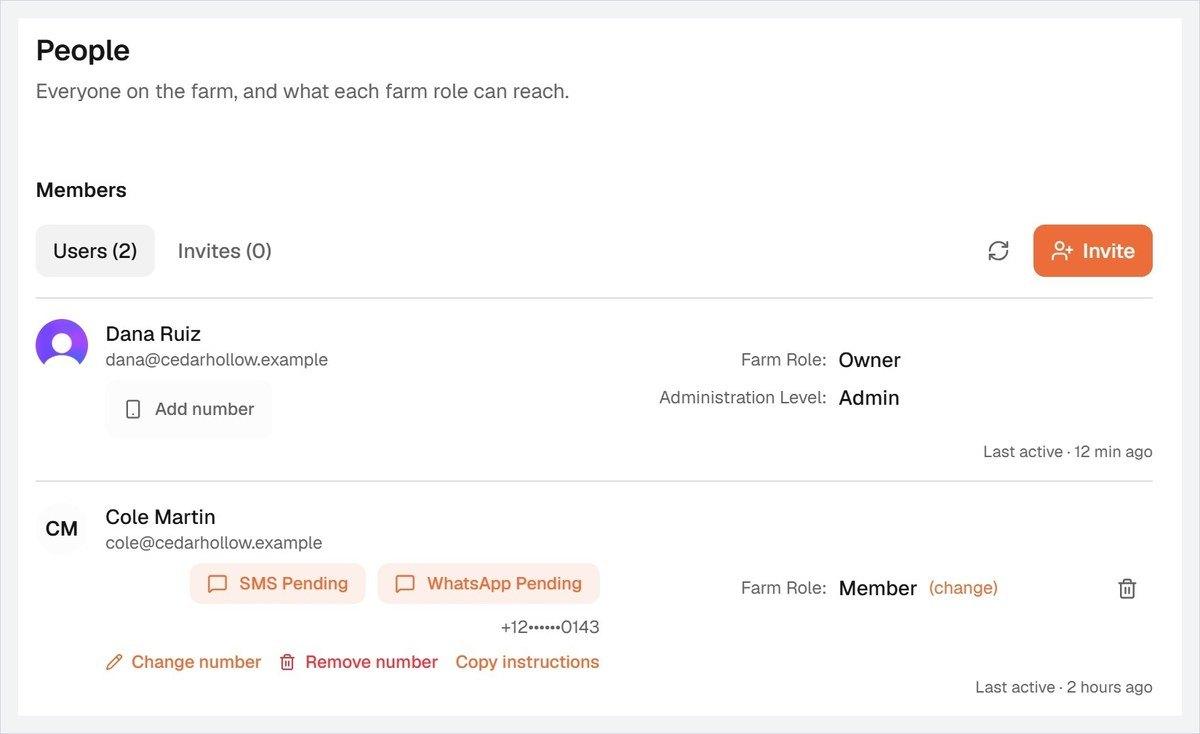
Their row then shows the number and Pending until they write in.
- They reach AgAnswers whichever way suits them:
- Text message: text (217) 217-2717.
- WhatsApp: message AgAnswers on WhatsApp.
- Email: write to your farm's Chat with AgAnswers address, from the email on their AgAnswers account. You'll find it under Settings, Connections, Farm email.
The first time they text or use WhatsApp, AgAnswers asks them to reply START.
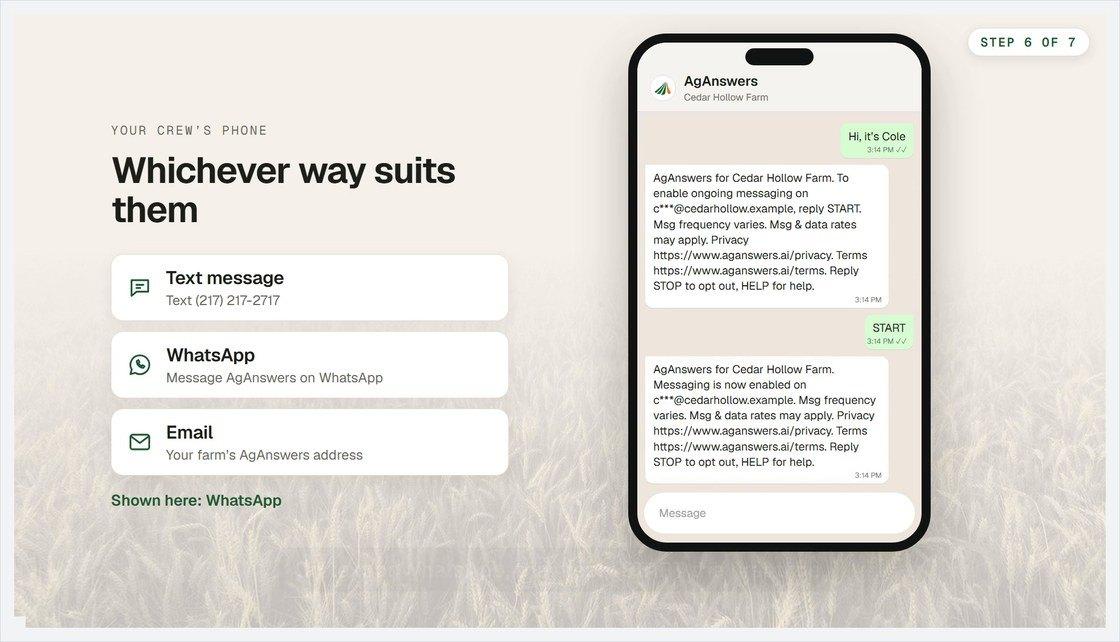
- To send a ticket, they take a photo and send it on WhatsApp, or attach it to an email. AgAnswers saves it and writes back what it read. It shows up on your Tickets page right away.
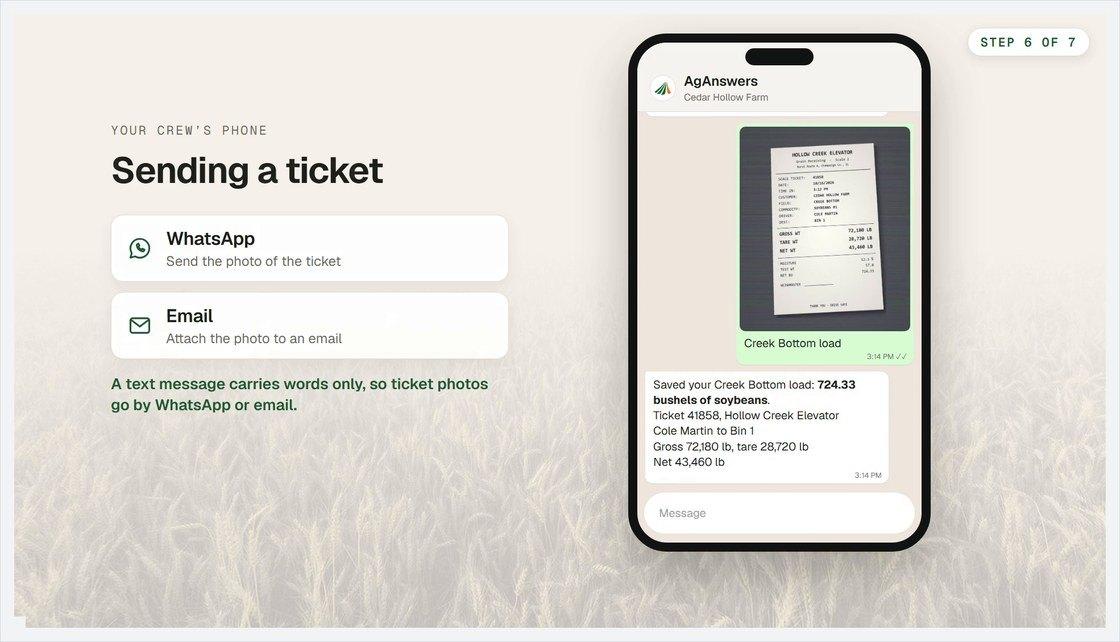
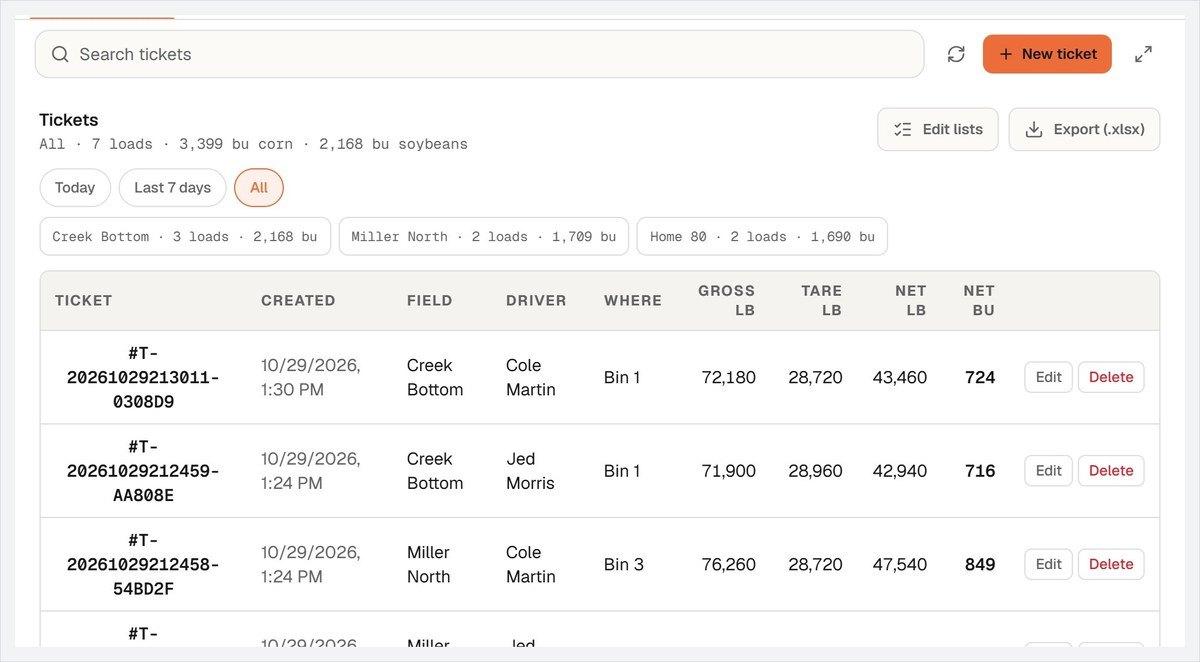
Tip: A text message carries words only, and a photo sent by text isn't read. Send ticket photos by WhatsApp or email. Tickets sent this way are saved straight away, so glance over them on the Tickets page and click Edit to fix one.
Step 7. Export to Excel
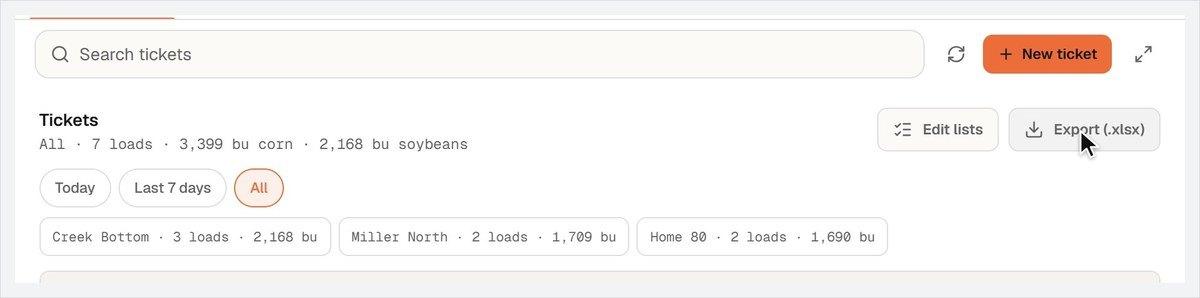
- On the Tickets page, click Export (.xlsx). The file downloads.
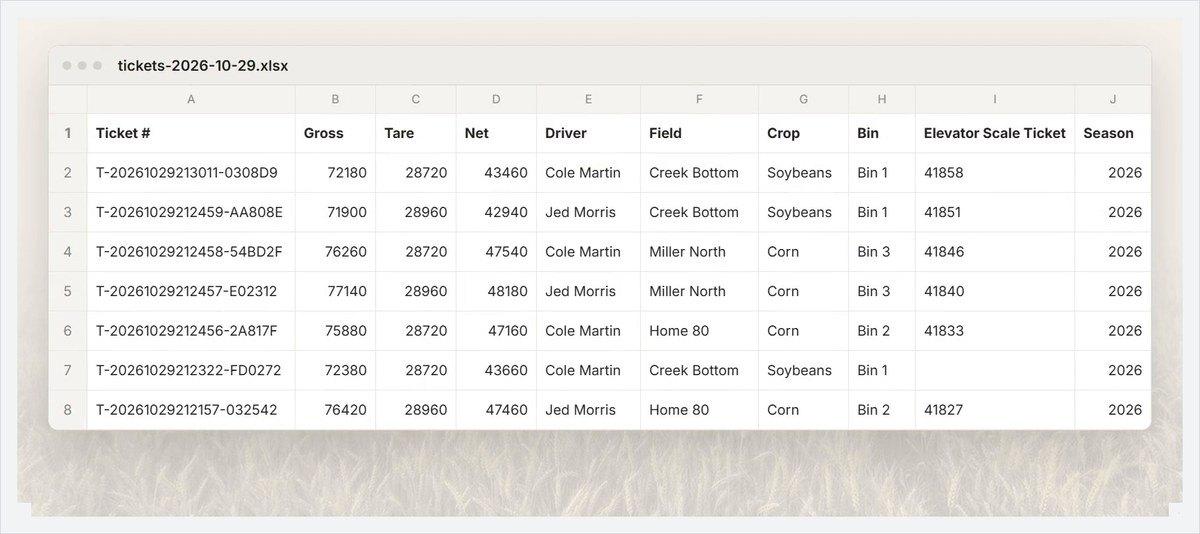
- Every ticket is one row: the weights, driver, field, crop, bin, the elevator's ticket number and the season. Ready for your records, your landlord or your accountant.
Good to know
- Moisture, test weight and dockage aren't read from the ticket.
- The same ticket scanned twice is saved twice, so check before saving one you may already have.
- One photo can hold up to 60 tickets.
- Scan ticket photo takes pictures. For a PDF settlement sheet, drop it in the chat and ask.
- The export lists weights in pounds; bushels are on the Tickets page.