AgAnswers reads your soil test reports and lays out the numbers zone by zone. Send in the report in the chat, ask for the numbers, and say yes to save them with the field. Send in last year's report too, and see how the field changed. Watch the video, or follow the steps below at your own pace.
What you'll need
- Your soil test report, as a PDF.
- To compare years, last year's report too.
- The chat, where you send it in.
Step 1. Send in the report
- In the chat, click the paper clip and pick your soil test PDF.
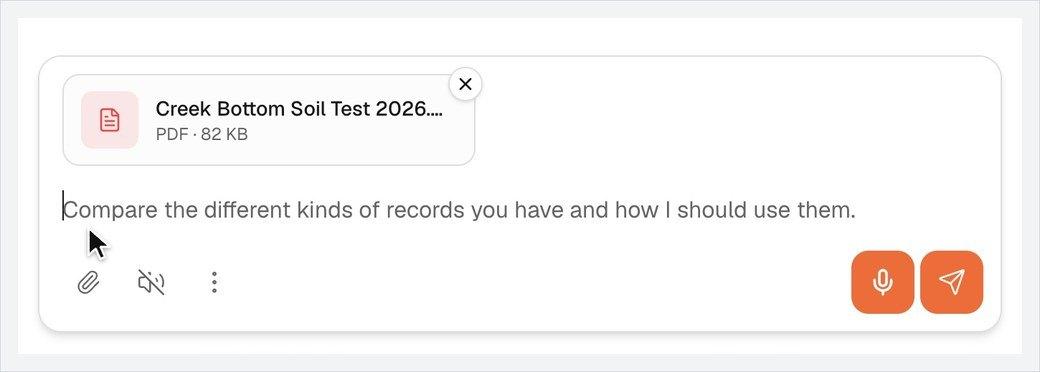
Step 2. Ask for the numbers
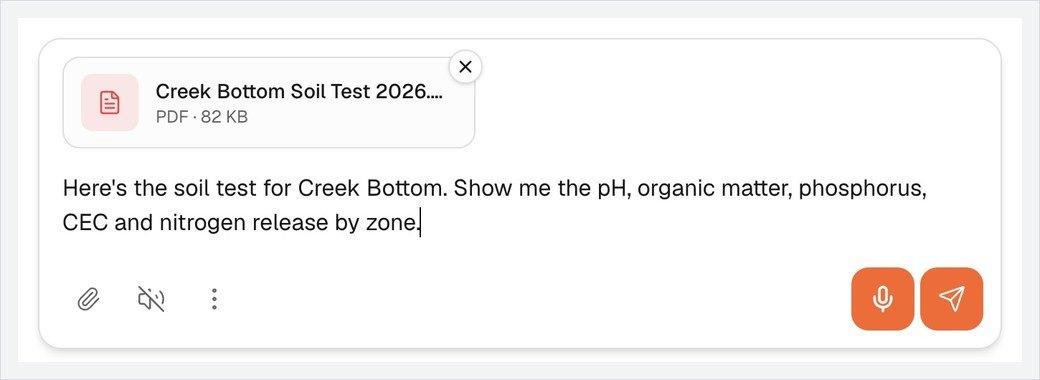
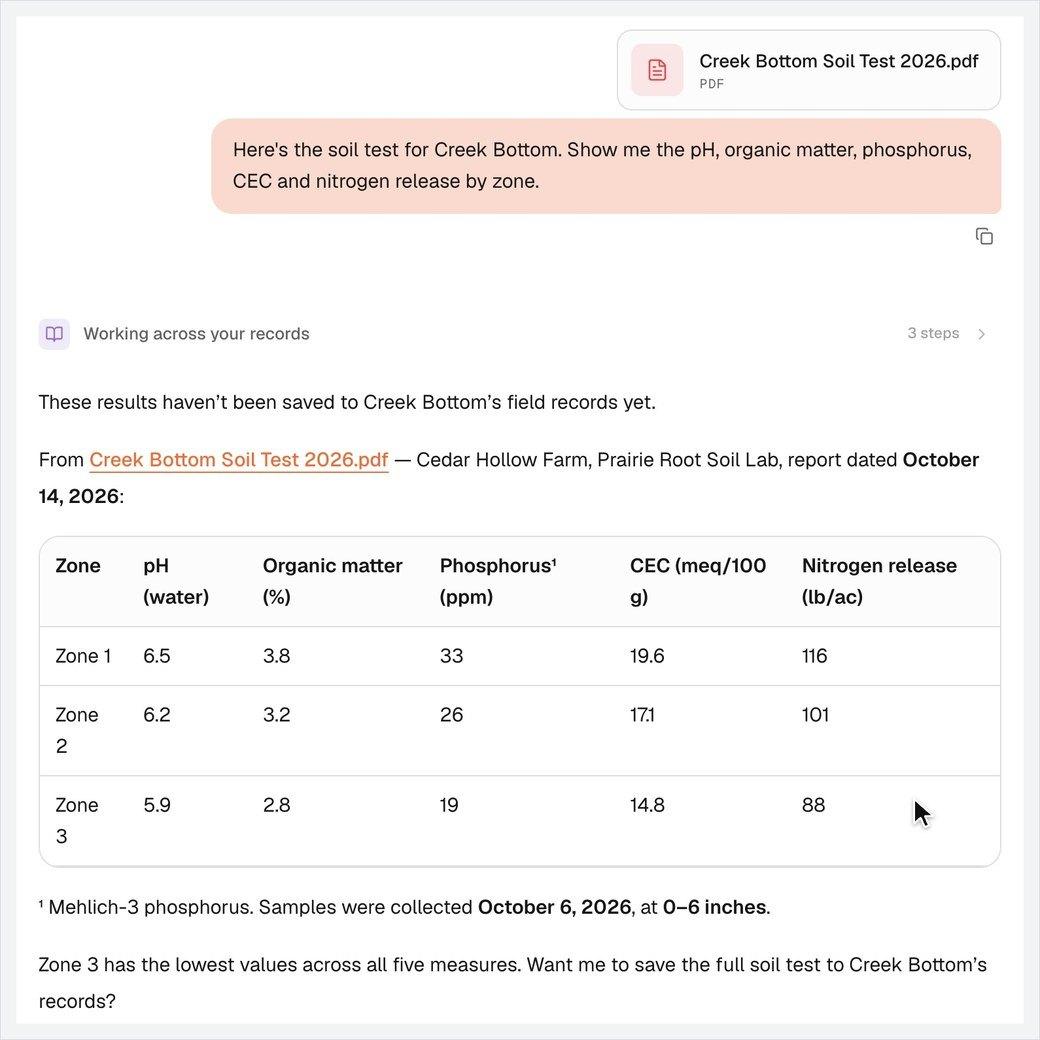
- Ask for the numbers you want, like the pH, organic matter, phosphorus, CEC and nitrogen release, by zone, and send it.
- AgAnswers reads the report and lays out each zone's numbers. They aren't saved until you say so.
Step 3. Save it
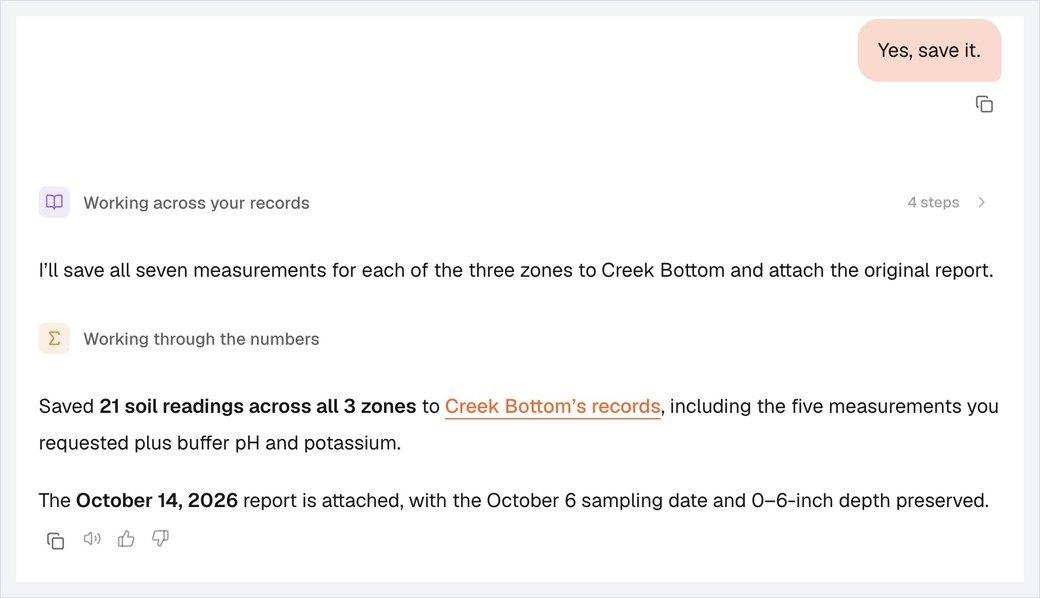
- Say yes.

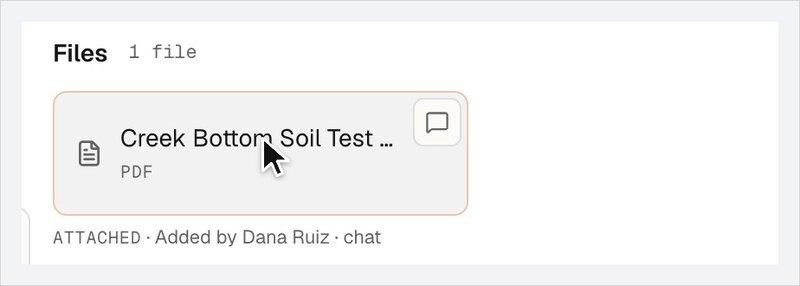
- The numbers are saved with that field, and the report is attached to it.
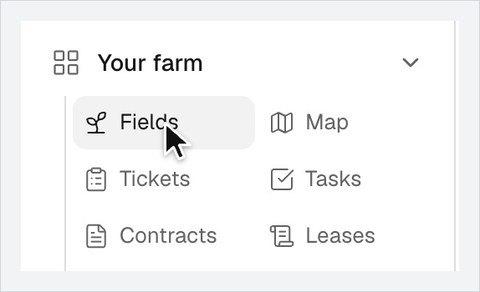
- To see it, in the menu under Your farm, click Fields, then open the field.
- The report is under Files on the field's page.
Step 4. Compare years
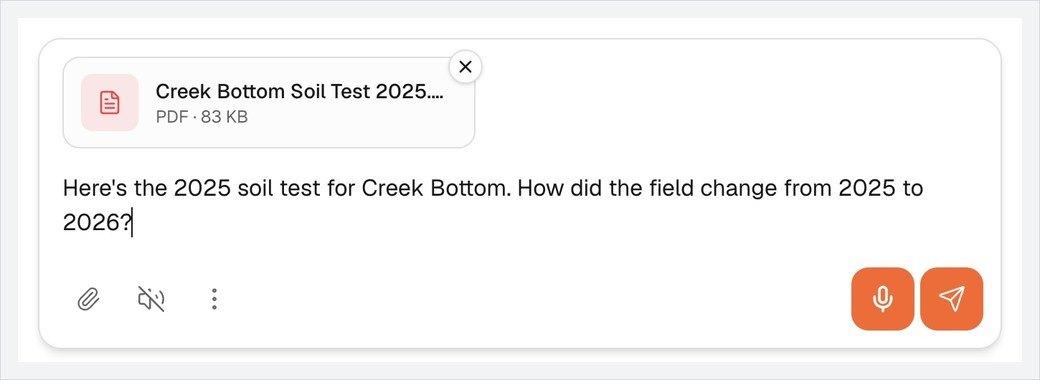
- In a new chat, send in last year's report too, and ask how the field changed.
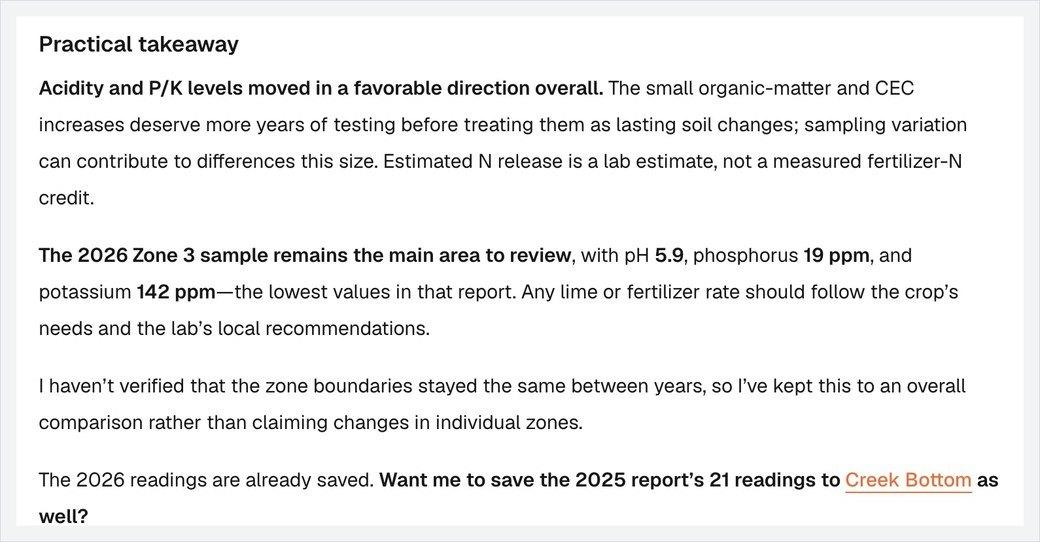
- AgAnswers puts both years side by side, with how much each number changed.
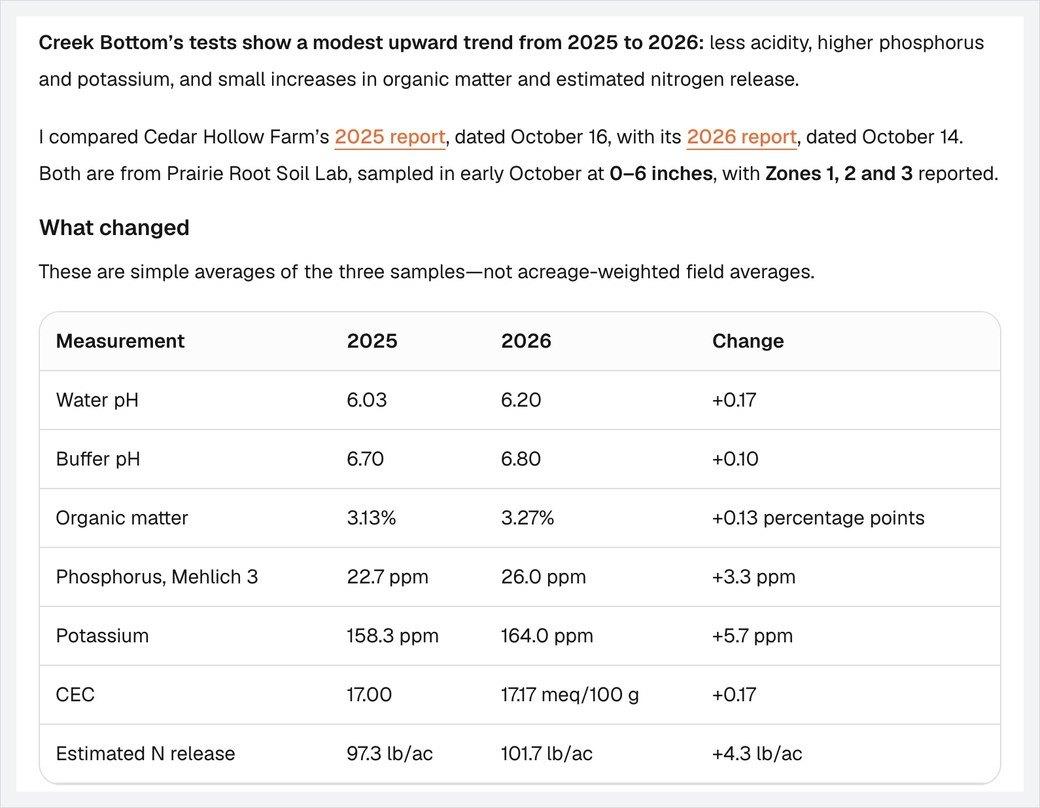
- It also points out what stands out, and asks before it saves last year's numbers too.
Good to know
- The numbers aren't saved until you say yes.
- When you save, the report itself is kept with the field, under Files.